![content.buywithvan.comhs-fshubfsvan-logo-white-1.png]](https://knowledge.buywithvan.com/hs-fs/hubfs/social-suggested-images/content.buywithvan.comhs-fshubfsvan-logo-white-1.png?width=120&height=48&name=content.buywithvan.comhs-fshubfsvan-logo-white-1.png)
Enrollment
- Check your @buywithvan inbox for the SafeNet enrollment email
- Click on the link within the email
- Follow the instructions
- Install MobilePass+ in your laptop or mobile phone by selecting the device type in the drop down
- Once MobilePass+ is installed then click on the blue link ‘Enroll your MobilePass+ token’
- You will have to create a 4-digits PIN


Getting an OTP Code
- Once MobilePass+ is successfully installed and your user have been enrolled, you should see a screen similar to this:
- If you see 6 dots you have to click on it to unlock the temporary OTP code needed to log to the SafeNet dashboard.

Accessing SafeNet Dashboard
- Once you are able to retrieve the code you can now try to log to the SafeNet dashboard.
- Please open and bookmark the following url in your browser as you will use it frequently
- Log in to the SafeNet Dashboard
- Your username is the first letter of your name and the full last name: For example Mike Smith will be msmith
- Your username is the first letter of your name and the full last name: For example Mike Smith will be msmith
- Check the Remember me on this device and then click on the Login button.
- You will select the authentication method:
- Push notification sent to your device
- Enter a Code: 6 digits explained above ☝
- If you selected Enter a code you will open your MobilePass+ application to retrieve it and then enter it:
- Then click on Login to finally access the SafeNet dashboard.


Accessing VAN Applications
- Once logged into the SafeNet Dashboard, click on Favorite Applications -> View All
- Then on Other Applications
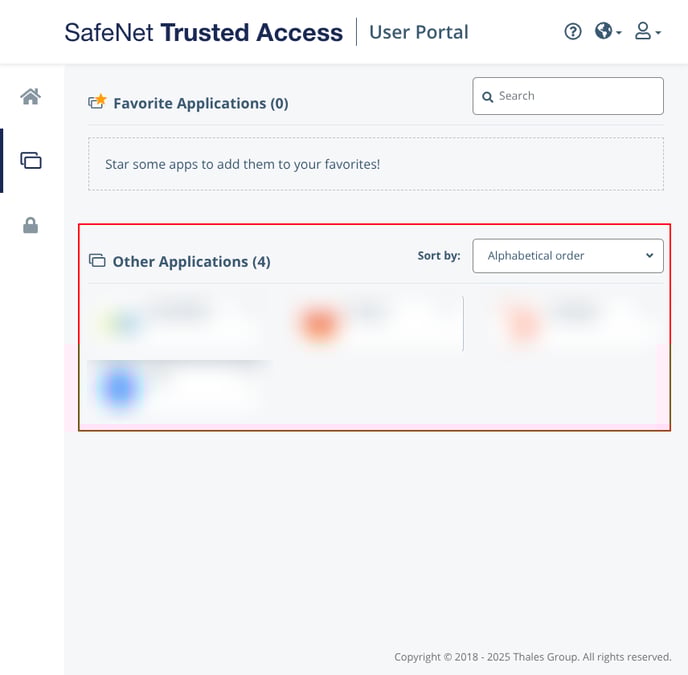

Click on the required applications you were instructed to use