![content.buywithvan.comhs-fshubfsvan-logo-white-1.png]](https://knowledge.buywithvan.com/hs-fs/hubfs/social-suggested-images/content.buywithvan.comhs-fshubfsvan-logo-white-1.png?width=120&height=48&name=content.buywithvan.comhs-fshubfsvan-logo-white-1.png)
Step 1 – Install Dark Reader
- Open the Chrome Web Store and install Dark Reader
- Once installed, the Dark Reader icon will appear in your Chrome toolbar.
- If you don't see it, click the Extensions button (puzzle piece icon) next to the address bar and pin Dark Reader.
Step 2 – Enable Dark Reader only for VAN
This is the most important step — it ensures Dark Reader only activates on your dealer portal and does not change the appearance of any other site.
- Navigate to dealer.buywithvan.com and log in as normal.
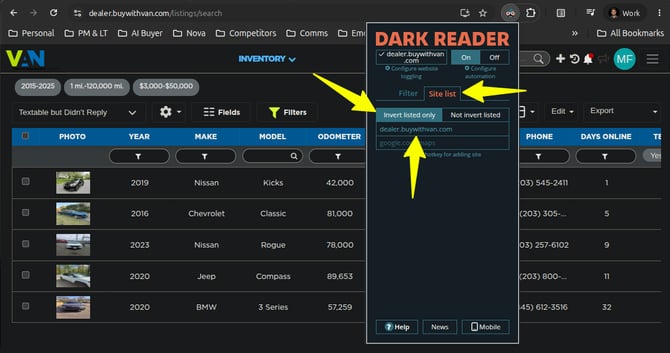
- Click the Dark Reader icon in your toolbar to open the extension panel.
- Make sure the main On/Off switch (top right of the panel) is set to On.
- Move to the Site List tab.
- Select "Invert listed only" is selected, and only dealer.buywithvan.com is in the list
- That's it — your dark theme is now scoped only to this site.
Important: Always click "Only for" before adjusting any settings. If you adjust settings without activating "Only for" first, the changes will apply globally to every website you visit.
Step 3 – Adjust the Appearance (Optional)
With the "Only for" button active, you can fine-tune how the portal looks using the sliders in the Filter Settings section:
- Mode – Choose Dynamic for the best results (it intelligently analyzes the page). If the portal looks odd, try Filter+ or Static as alternatives.
- Brightness – Increase or decrease overall brightness to match your screen or room lighting.
- Contrast – Boost contrast if text feels hard to read.
- Sepia – Adds a warm tone to reduce eye strain.
- Grayscale (Saturation) – Reduces color intensity if you prefer a more neutral palette.
These settings will only be saved for dealer.buywithvan.com.
Turning It Off Temporarily
- To disable Dark Reader on the dealer portal only, click the Toggle site button at the top of the panel while on dealer.buywithvan.com. This will add the site to the ignore list and restore the default appearance.
- To disable the extension entirely across all sites, use the main On/Off switch.
Troubleshooting
The page looks broken or loads slowly — Open the Dark Reader panel, go to Filter Settings, and switch the Mode to Filter or Static instead of Dynamic.
Dark Reader is affecting other websites — You may have adjusted settings without "Only for" active. Open the panel on each affected site and use the Toggle site button to exclude it, or reinstall the extension and start fresh using the steps above.
The extension isn't working at all — Make sure the On/Off switch is set to On and that dealer.buywithvan.com is not listed under the Site List tab.
It's not working in Incognito mode — Go to chrome://extensions, find Dark Reader, and enable "Allow in Incognito."
This guide is a temporary solution while we build native dark mode into the dealer portal. We'll notify you when it's available!