![content.buywithvan.comhs-fshubfsvan-logo-white-1.png]](https://knowledge.buywithvan.com/hs-fs/hubfs/social-suggested-images/content.buywithvan.comhs-fshubfsvan-logo-white-1.png?width=120&height=48&name=content.buywithvan.comhs-fshubfsvan-logo-white-1.png)
TL;DR: in your MAC or Windows, click on your main search bar, type scrollbar and then:
- Read through the first results
- Find the first that states "Always on", "Show always" or similar
- Turn it on or / enable it
Windows
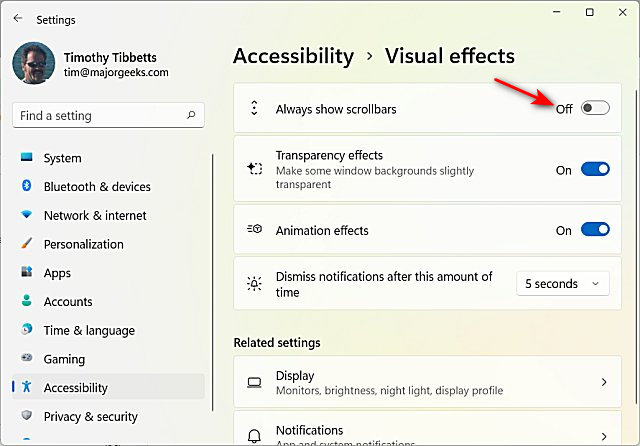
For Windows 10 and 11, the setting is found in the Accessibility options:
- Open Settings: Press
Windows Key + Ior click the Start button and then the Settings gear icon - Go to Accessibility: In the Settings window, click on "Accessibility" in the left-hand sidebar
- Select Visual effects: On the right side, click on "Visual effects."
- Toggle "Always show scrollbars": You'll see a toggle switch labeled "Always show scrollbars." Turn this On
MacOS
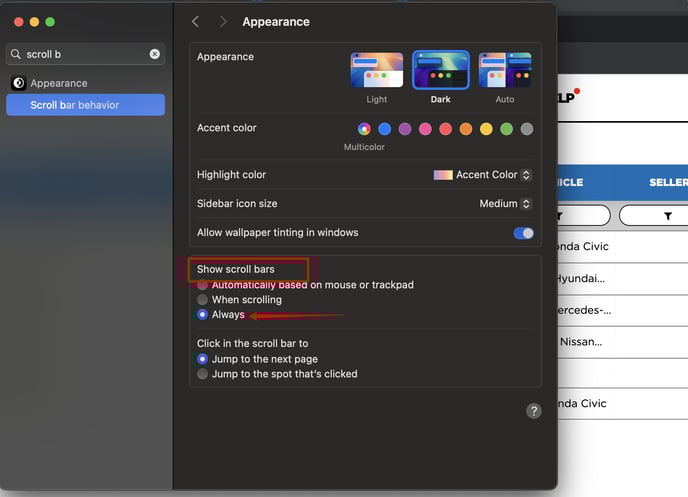
On macOS, you can change this behavior in System Settings (or System Preferences on older versions):
- Open System Settings: Click the Apple menu in the top-left corner of your screen, then select "System Settings/Preferences)
- Go to Appearance/General: In the sidebar, click on "Appearance/General"
- Set "Show scroll bars": Look for the "Show scroll bars" option and select Always.