![content.buywithvan.comhs-fshubfsvan-logo-white-1.png]](https://knowledge.buywithvan.com/hs-fs/hubfs/social-suggested-images/content.buywithvan.comhs-fshubfsvan-logo-white-1.png?width=120&height=48&name=content.buywithvan.comhs-fshubfsvan-logo-white-1.png)
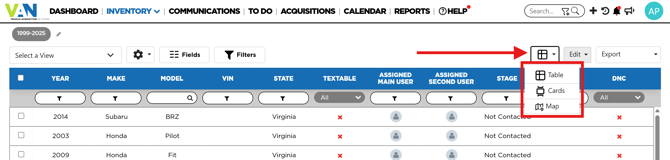
The layout menu is located in the top-right section of the inventory module. These layouts are the different ways the system has to show the users the information from the inventory. We will list them below showing their main differences.
Table Layout
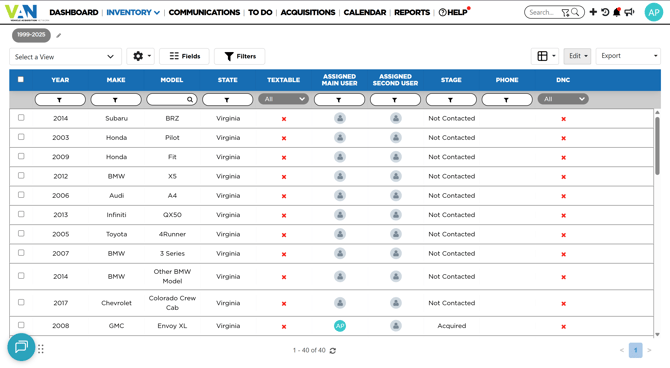
Is the classic view of the system, showing all the listings information selected from the current view in a table where each piece of information has its respective column with its filter in it.
Cards Layout
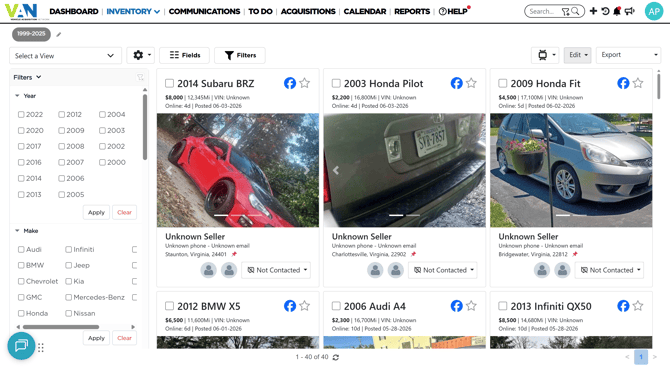
This layout shows the listings of the selected view as independent cards, showing their main information and allowing to filter the listings with a filter menu located on the left side of the screen. The fields that appear in the filter section can be selected from the Fields button, and the whole filter section can be hidden with the Filters button.
Map Layout
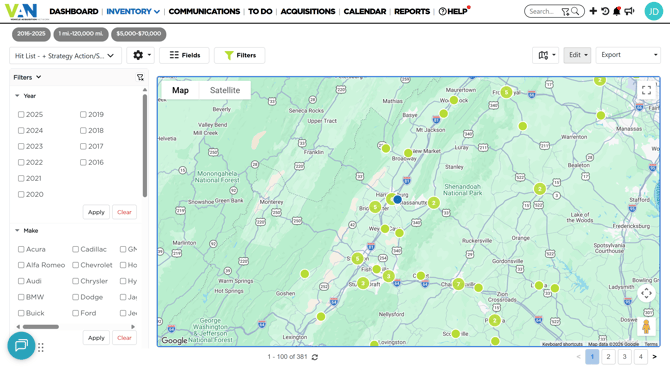
The map layout shows a map with the client store marked on a blue dot, while showing al the listing in the area with green dots.
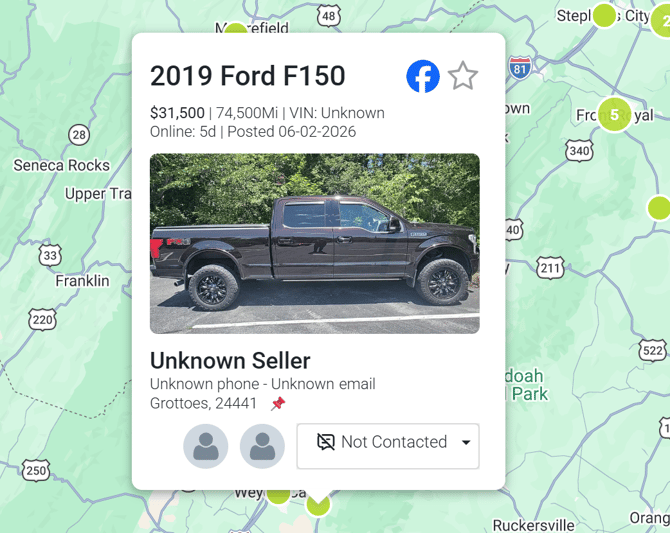
When a green dot is clicked on the map, if it is a regular listing, a card with its information will pop-up, and if the green dot has a number in it, that means multiple listings were found in that area, and when is clicked on it, it will show a list with those listings.
This layout uses the same way to filter listings as the cards layout, making just the listings that matches the filters to appear in the map.