![content.buywithvan.comhs-fshubfsvan-logo-white-1.png]](https://knowledge.buywithvan.com/hs-fs/hubfs/social-suggested-images/content.buywithvan.comhs-fshubfsvan-logo-white-1.png?width=120&height=48&name=content.buywithvan.comhs-fshubfsvan-logo-white-1.png)
After your Acquisition Coach set up your account, you will receive an email with:
- Your username
- A temporary password
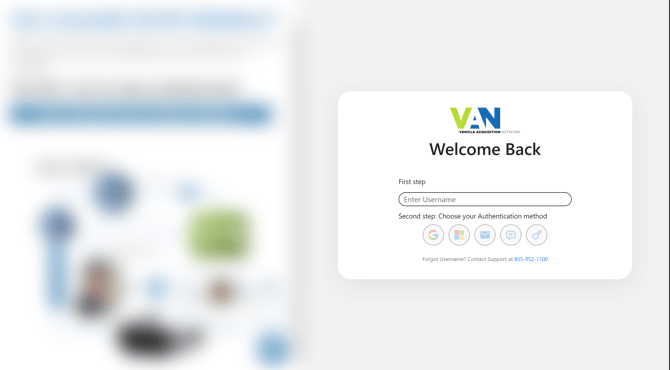
Once you reach the login page, you will have to complete the following steps:
- Complete your Username
- Select an authentication method, you will be able to choose between the following options:
- Google - Select and sign in with your Google account credentials
- Microsoft - Select and sign in with your Microsoft account credentials
- Email - Enter your email and get a OTC (One Time Code)
- SMS - Enter your phone number and get OTC
- Password - Use your password to sign in
- Complete the information required and click on the Log In button. This step is only necessary for Email, SMS and Password authentication methods
Common Issues
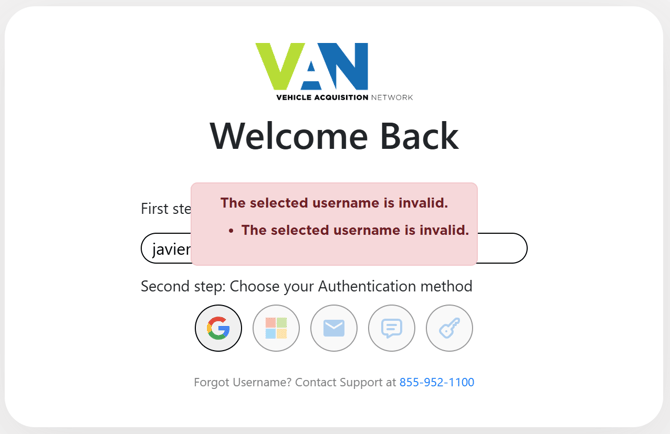
The selected username is invalid
Solution
Contact your AC to reset your username
After login, it's "stuck" in the loading page and I only see the VAN logo spinning
Context: This issue happens usually in Safari and also when another Google account is signed in, and it is not the one used to sign in in VAN platform.
Solution
- Open gmail.com or any google page
- Look for the Account button (usually in the top right corner)
- Log out
- Then log back in using the Google account credential allowed for VAN
- reopen dealer.buywithvan.com and sign in again with the Google button.