![content.buywithvan.comhs-fshubfsvan-logo-white-1.png]](https://knowledge.buywithvan.com/hs-fs/hubfs/social-suggested-images/content.buywithvan.comhs-fshubfsvan-logo-white-1.png?width=120&height=48&name=content.buywithvan.comhs-fshubfsvan-logo-white-1.png)
With this integration you can requests appraisals to VinCue directly from our VDP by following these steps:
Request VinCue Appraisal
With this integration you can requests appraisals to VinCue directly from our VDP by following these steps:
- From the VDP Export menu, select the Request VinCue Appraisal option (If it's greyed out on the screen, that means the request has already been made)
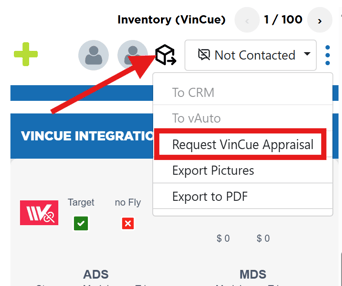
- This will open a confirmation window that, once you click on Confirm, it will:
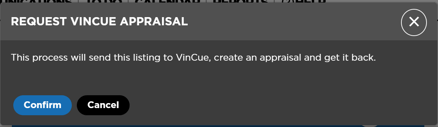
- Send the request to create the appraisal on VinCue
- Complete the Push/Request VinCue Appraisal Date/User/Status fields from the VinCue Integration section of the VDP
- Update the Offers and Appraisals section of the VDP with the information from the appraisal created by VinCue (The user shown in this section will be a VinCue Integration User, in order to let know whoever see this that the appraisal was made through the integration)
There are two important things to know regarding this feature:
- As requirements, Vin AND trim must be completed in the VDP in order for this integration to work
- Sometimes Vincue returns a negative ACV, when it occurs we don't display it, the Ace report either