![content.buywithvan.comhs-fshubfsvan-logo-white-1.png]](https://knowledge.buywithvan.com/hs-fs/hubfs/social-suggested-images/content.buywithvan.comhs-fshubfsvan-logo-white-1.png?width=120&height=48&name=content.buywithvan.comhs-fshubfsvan-logo-white-1.png)
This feature is available in the Accelerated tier as an add-on. Compare plans here
Scheduled messages are available for listings that have a textable phone number and/or email.
⚠ It is not yet available for Facebook or Kijiji
When you send messages in the platform, if you have this feature enabled, you will see a new section that will allow you to set the date and time the message will be automatically sent.
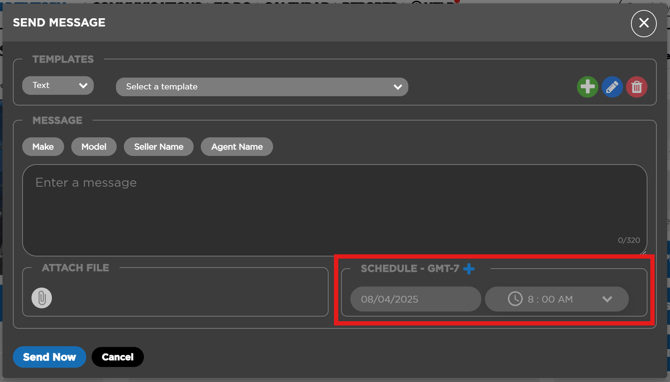
In order to set if this will be a scheduled message you will have to click on the blue ➕ icon located on the right of the section title, if you did it correctly:
- The ➕ icon will change to a red ✖️ (if you click on it again, it will return to the ➕ and deactivate the message scheduling)
- The Date and the Time fields will become editable
- The Send Now button will change its caption for Send Later
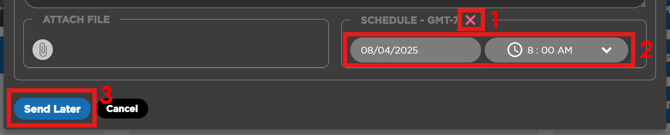
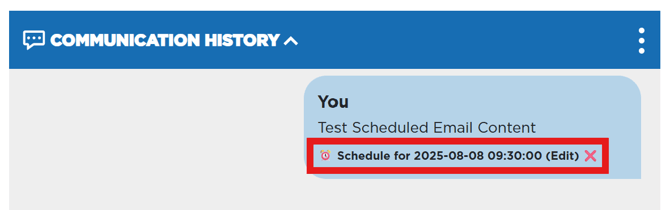
Now you just need to complete the date and time when you want the message to be sent and click on the Save Later button. Once you do it, your message in the Communication History section of the VDP will look like this:
Edit a Scheduled Message
If, for any reason, do you need to edit the message before it will be sent, you can do it by clicking on text marked on the image above. This will reopen the Send Message modal window and will allow you to edit and save again your message.
Delete a Scheduled Message
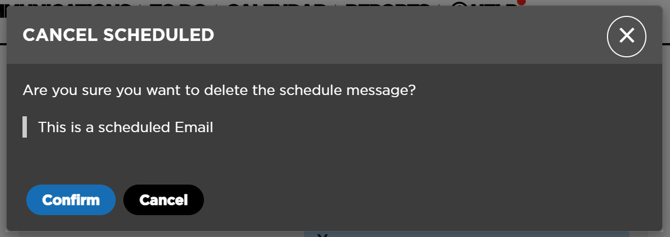
In case you do not want or need for this message to be sent anymore, you can click on the red ✖️ icon at the end of the marked area of the image. This will open Cancel Scheduled moda windows and, if confirmed, will delete and remove the message from the Communication History.
Outside the VDP
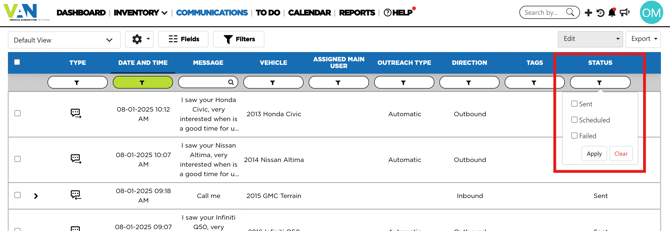
When this feature is enabled, the Scheduled status becomes available in the status field of the Communications Module, allowing you to filter, search and/or sort communications by this parameter.