![content.buywithvan.comhs-fshubfsvan-logo-white-1.png]](https://knowledge.buywithvan.com/hs-fs/hubfs/social-suggested-images/content.buywithvan.comhs-fshubfsvan-logo-white-1.png?width=120&height=48&name=content.buywithvan.comhs-fshubfsvan-logo-white-1.png)
Windows
Windows 10 and 11 contain a large set of emojis. To insert one:
-
Put your cursor where you want the emoji.
-
Hold
Windows key + . (period) to open the Windows Emoji picker.
-
Select a symbol to insert it in your email message.
-
When you're done, select × to close the emoji picker.
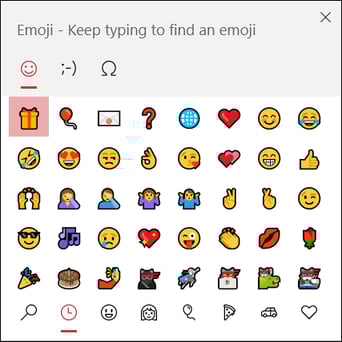
In the Windows emoji picker, you can either scroll through the list, use the category icons at the top or bottom of the emoji picker, or type a keyword to search for the emoji you want.
MacOS
You can use the Character Viewer to add emoji and pictographs.
-
Click where you want to place the emoji
-
Press Control-Command-Space bar
-
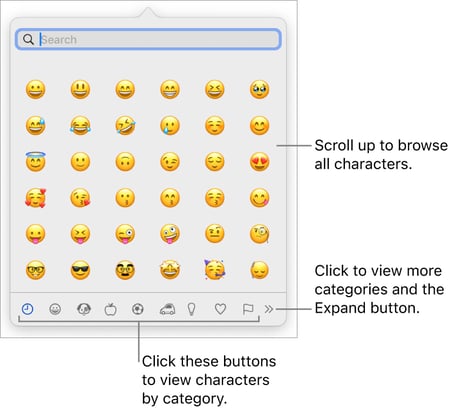
The Character Viewer appears where you clicked. You can drag it to the desktop if you want to keep it open as you work
-
To locate an emoji, do any of the following:
-
Scroll to see more emoji, or click the buttons at the bottom to jump to a category.
-
Scroll up, then type in the search field at the top (for example, type “flower” to see available flower emoji).
To see variations of an emoji, like different skin tones, click and hold the emoji in the viewer.
-
-
Click an emoji to insert it in the text.