![content.buywithvan.comhs-fshubfsvan-logo-white-1.png]](https://knowledge.buywithvan.com/hs-fs/hubfs/social-suggested-images/content.buywithvan.comhs-fshubfsvan-logo-white-1.png?width=120&height=48&name=content.buywithvan.comhs-fshubfsvan-logo-white-1.png)
The tag section can be used for a variety of reasons, but most commonly it is used by center teams to tag individual users and attach them to any listings they've been working on.
Reports can be generated based on tags, so upper management may view who has worked what listings and purchase specific vehicles.
Tags can also be created for vehicle statuses, such as clean carfax or hotlisting deal temperatures, such as very engaged or semi engaged, or even reasons for passing on a unit such as branded title or modifications.
Create a Tag
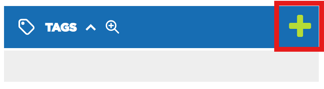
Whatever tag you want to create for your team simply click on the ➕ icon located on the top-right corner of the Tags section of a VDP, this will open the following window:
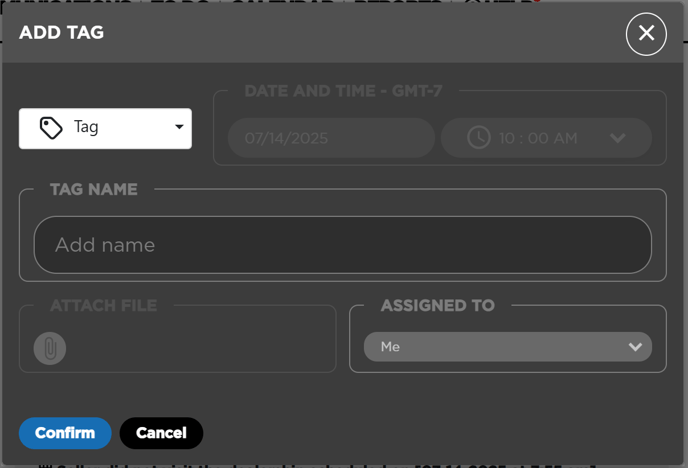
Once in the window, enter the tag name and then hit Save. The tag will be automatically created and assigned to the VDP.
Search / Assign Tags
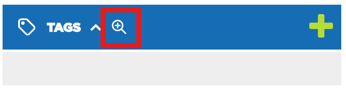
To search for a tag to assign to the VDP, you can click on the 🔍 icon located on the right of the Tags section name of a VDP, this will open the following a menu with all the available tags created. You can assign any amount of tags from here at the same time.
Remove Tags
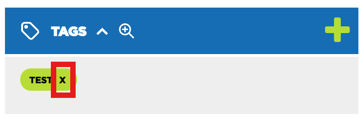
In order to remove a tag from a listing, you can find the tag in the Tags section of the listing VDP, and when you hover over the tag an ✖️ will appear on the right of the tag label. By clicking on it, the tag will be removed from the VDP.
Delete Tags
If you need to delete a tag from the system you can do it by following these steps:
- Click on an assigned tag
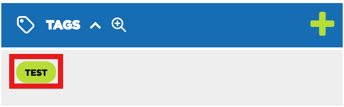
- The following window will be opened:
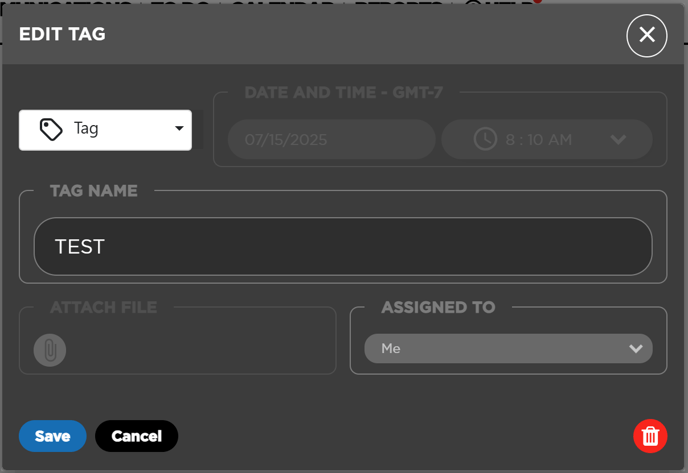
- Click on the red button with the trash can icon
Once a tag is deleted, it disappears not just from the current VDP but from everywhere in the system that it was assigned. If what you want to do is just remove the tag from the current VDP, follow the instructions from the Remove Tags section.