![content.buywithvan.comhs-fshubfsvan-logo-white-1.png]](https://knowledge.buywithvan.com/hs-fs/hubfs/social-suggested-images/content.buywithvan.comhs-fshubfsvan-logo-white-1.png?width=120&height=48&name=content.buywithvan.comhs-fshubfsvan-logo-white-1.png)
In cases when a user receives an incoming message from an unknown source (phone number or email address not present in any listing), what the system does is create an unknown listing with that call information. You can access this listing in any of the following ways:
- By clicking the green View button on the pop-up that will appear when the call is made
- By searching the incoming message in the communications module. You can filter your current view by the field Vehicle, filtering by value and selecting the option Without Vehicle.
Once filtered, in case you have multiple results, you will have to review the listings until you find the one you are looking for. Click here if you want to know more about Views, fields and filters.
If this scenario is common for you, we would recommend you to create a view called Unknown Listings and, this way, you will improve the search.
When you find the unknown listing you are looking for, open it and it will look like this:
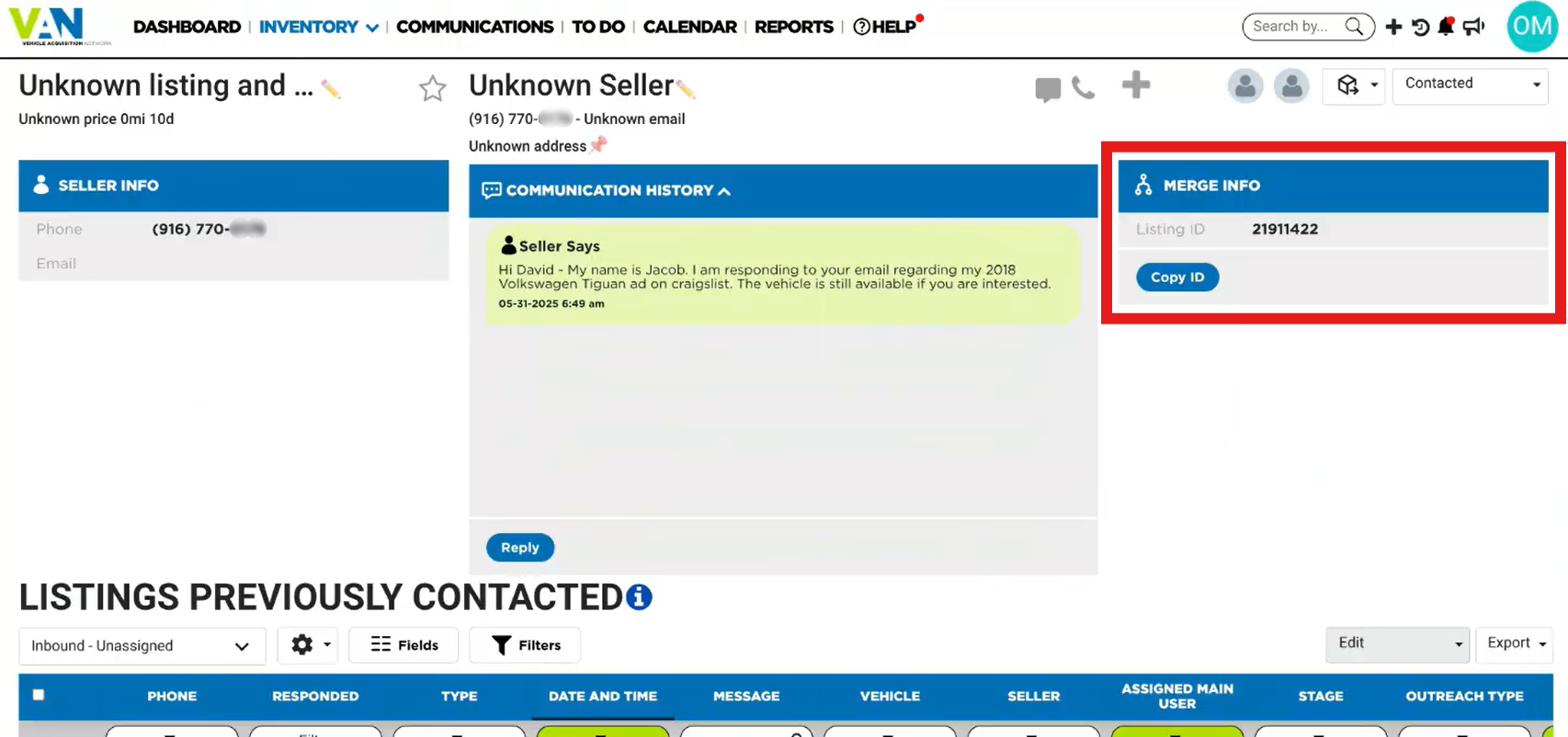
As you can see in the image, the listing has limited information:
- In the Seller Info section, it shows the phone number or email where the message came from
- In the Communication History section, you will see the message content
- The Merge Info section, marked in red in the image above, where it shows the listing ID and gives you the option of copy it. This will be helpful further in the merging process
- Right below, there is the Listing Previously Contacted section, where you can search through all the listing that you already contacted, for the one to merge with this unknown listing
In order to merge the information of this unknown listing with the original listing where it belongs, you must follow this steps:
- In the Listings Previously contacted section, adjust the filters as needed to find the proper listing
- Then go to the Merge Info section and copy the unknown listing ID
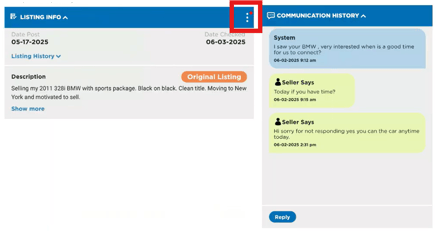
- Go to the matching listing's VDP, then to the Listing Info section
- From the ⋮ menu located on the top-right corner of the section, select Merge Listings
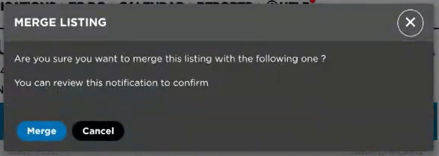
- Click Merge in the confirmation window that will appear
This will finalize the merging process, adding the new communication to the original listing as shown below:
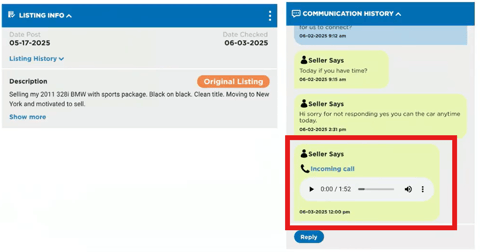
And if, by any reason, you return to the unknown listing record, a message will appear informing you that listing as already been merged, showing you when it was merged and giving you the information of the listing it was merged with.