![content.buywithvan.comhs-fshubfsvan-logo-white-1.png]](https://knowledge.buywithvan.com/hs-fs/hubfs/social-suggested-images/content.buywithvan.comhs-fshubfsvan-logo-white-1.png?width=120&height=48&name=content.buywithvan.comhs-fshubfsvan-logo-white-1.png)
The Calendar module ↗️ is where you'll find all the all the events (tasks, appointments, notes, messages, etc.) created in the system grouped by date, as well as being able to manage this information based on the different filters the module offers. This module shows the same information that the To Do module, but with calendar format.
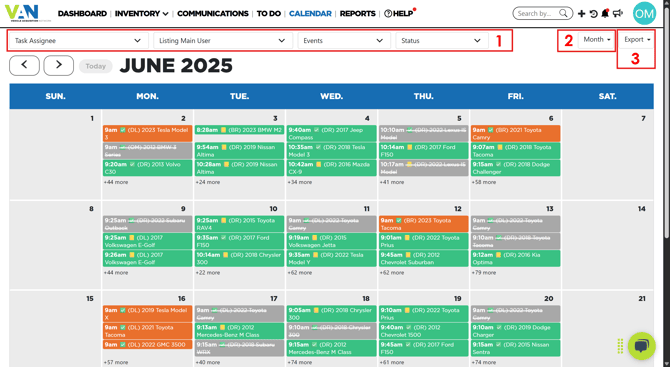
1 - Filters
You can personalize which events are shown in this module by using the following filters:
- Task Assignee - Shows only events assigned to the selected users
- Listing Main User - Shows events whose listing main user is any of the selected users
- Events - Shows the events of the selected types:
- 📆 Appointment
- 📝 Note
- 💬 Text
- 📲 Call
- ✅ To Do
- Status - Shows events with the selected status:
- 🟩 Completed
- ⬜ Deleted
- 🟧 Missed
- 🟦 Pending
In order to show a more specific selection of events, you can combine the different filters.
2 - Display Options
This module gives the users the possibility of visualising the system information on different formats:
- Month - Show all the events* for the selected month in a calendar format
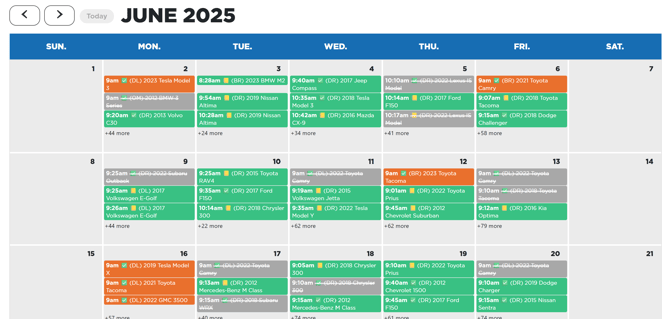
- Week - Show all the events* for the selected week in chronological order
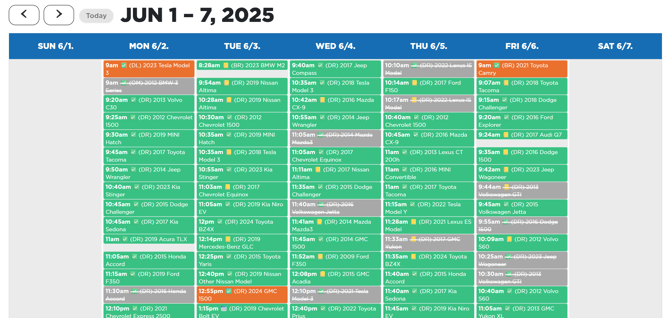
- Day - Show all the events* for the selected month in chronological order
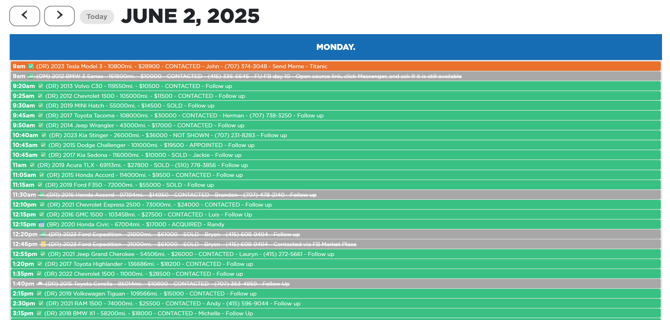
- Agenda - Show all the events* from the previously selected visualization type (Month, week or day) as a list in chronological order
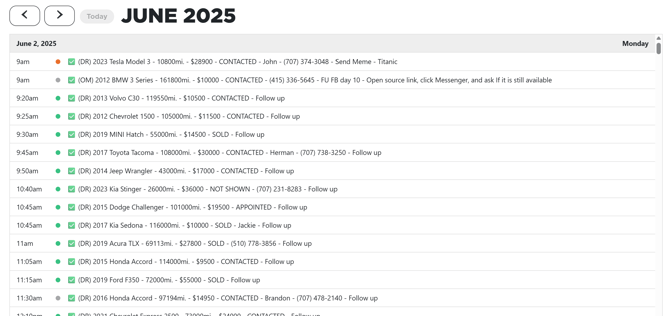
*the events shown may have filters applied. Therefore, they may not be all the existing events.
Besides these different ways to visualize the information, the module also offers some secondary options to adjust the experience and improve the user experience:
- Show weekend - This options remove Saturday and Sunday from all visualization types
- Start week on Sunday - Set Sunday (if checked) or Monday (if not checked) as the first day of the week for monthly and weekly visualizations
- Show past events - This option shows or hides all the events that have past their expiration date and time
3 - Export
This menu gives you the option to export and download all the information shown on the screen at the moment of triggering the export into a .CSV file that can be opened as a spreadsheet. Learn more about how the Export Menu works here.
Mobile Version
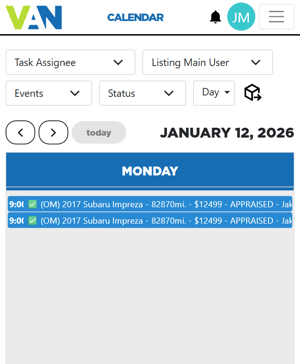
For small screens, the calendar behavior and look has got a few changes:
-
It only shows the DAY display option
- Its components have been relocated in order to fit the screen properly