![content.buywithvan.comhs-fshubfsvan-logo-white-1.png]](https://knowledge.buywithvan.com/hs-fs/hubfs/social-suggested-images/content.buywithvan.comhs-fshubfsvan-logo-white-1.png?width=120&height=48&name=content.buywithvan.comhs-fshubfsvan-logo-white-1.png)
-
Download the desktop installer
-
Unzip and execute it
-
Allow/unblock the installer
-
- Go back to Chrome and install our extension
Allow/Unblock the installer
- After downloading, double-click the downloaded .zip file and extract in <you username>/Downloads/VAN EXTENSIONS
-
VAN Extensions Manager is not yet signed by the App Store app — and it is not a failure
-
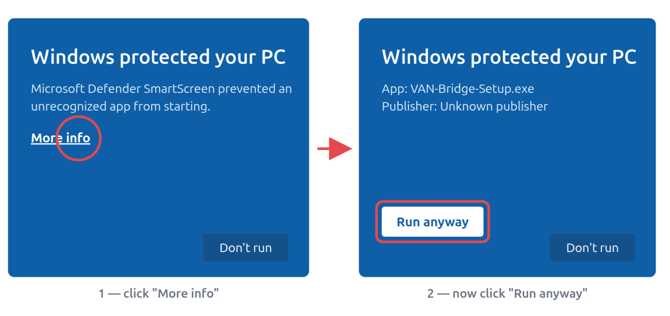
A blue "Windows protected your PC" screen appears (Microsoft Defender SmartScreen). That is expected
-
Click More info (small text under the message).
-
Click Run anyway.
-
The installer opens normally after that. Click through it.
-

Windows Defender/Windows Security stills blocks the installer to run
If Windows Smart App Control blocks from installing the desktop app, then follow these steps
- Search windows Security
- Inside search for Smart App Control
- Toggle it off
If you see this message: Error Code 225, you need to go over the following extra easy steps:
Fixing Windows Error 225
- Open Windows Security, go to Virus & threat protection Settings, click Allowed Threats
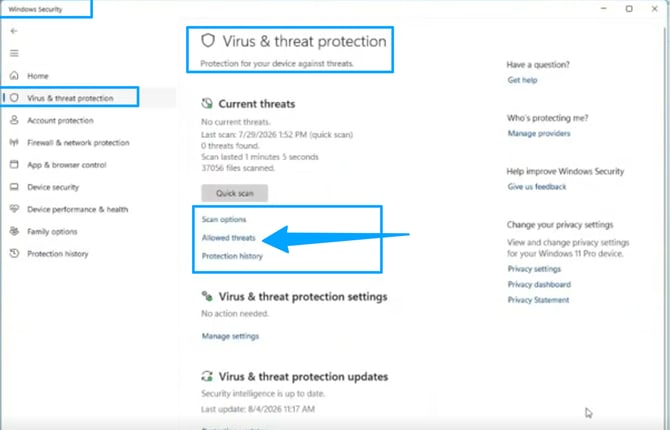
- Then click Protection history to see what file was quarantined at the time you attempt the installation
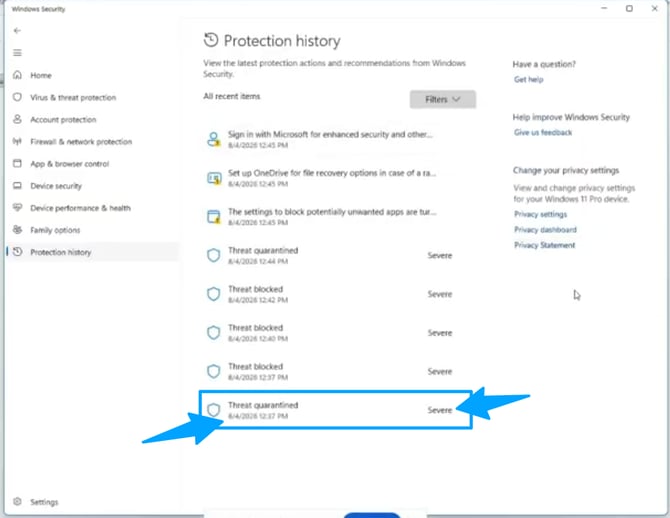
- Since you trust VAN and hence the file and know it is safe, click on the status text on the right, in this example we choose Severe
- Once Windows turns the screen with a dark background stating Do you want to allow this app to make changes to your Windows Security? Click Yes
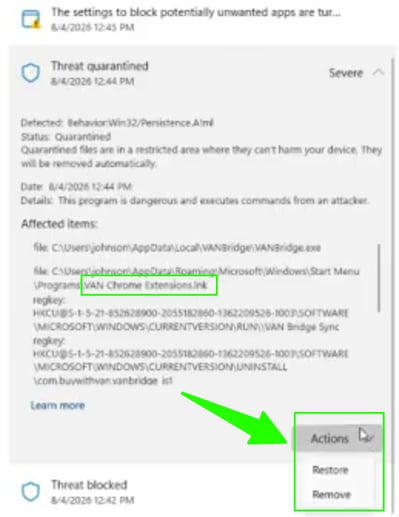
- Then select Restore
- You can run the installer or the app again
If you can't move forward
If the file disappears right after extracting, your antivirus quarantined it. Extract the zip again.
Do not turn your antivirus off — if it happens twice, message support with your antivirus name.