![content.buywithvan.comhs-fshubfsvan-logo-white-1.png]](https://knowledge.buywithvan.com/hs-fs/hubfs/social-suggested-images/content.buywithvan.comhs-fshubfsvan-logo-white-1.png?width=120&height=48&name=content.buywithvan.comhs-fshubfsvan-logo-white-1.png)
Opening Chrome's extensions page and turning Developer mode ON
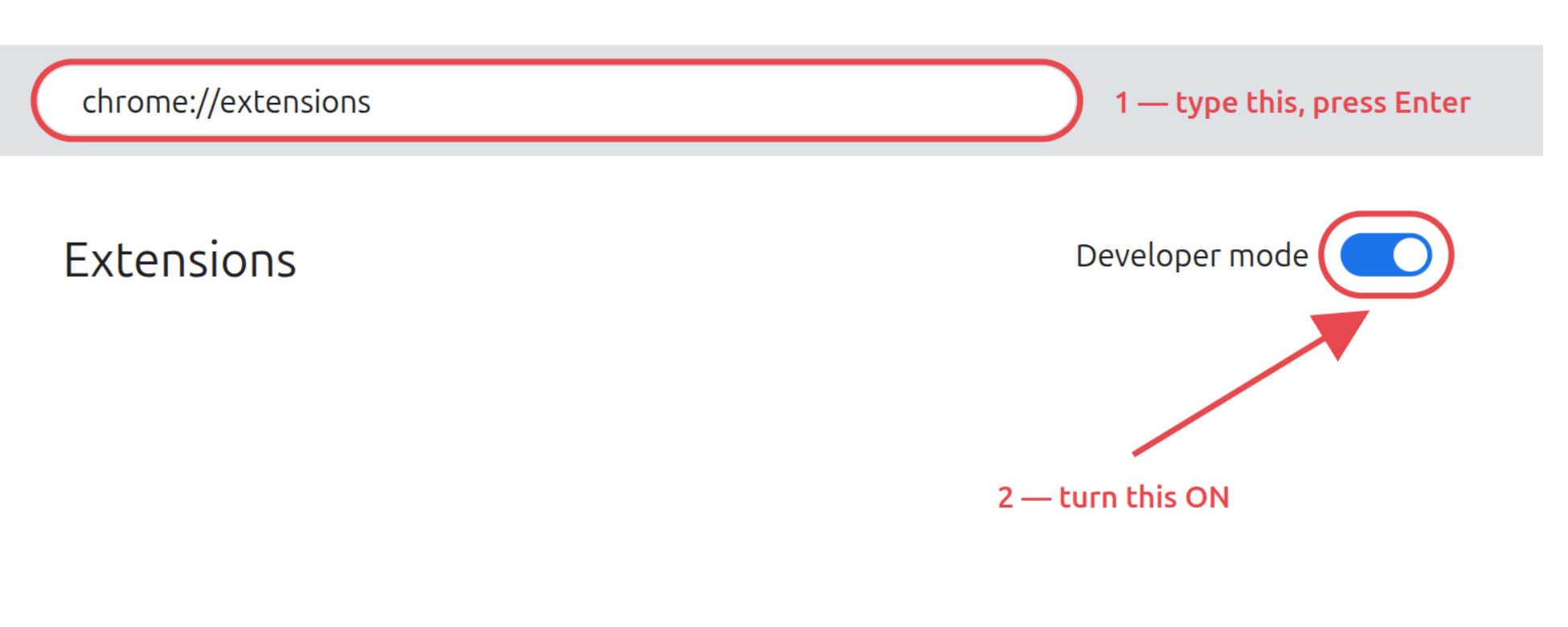
Type chrome://extensions in Chrome's address bar and press Enter. Then switch ON Developer mode, in the top-right corner:
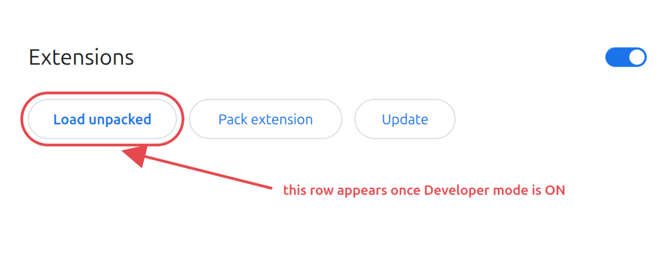
Click "Load unpacked"
A new row of buttons appears at the top once Developer mode is on:
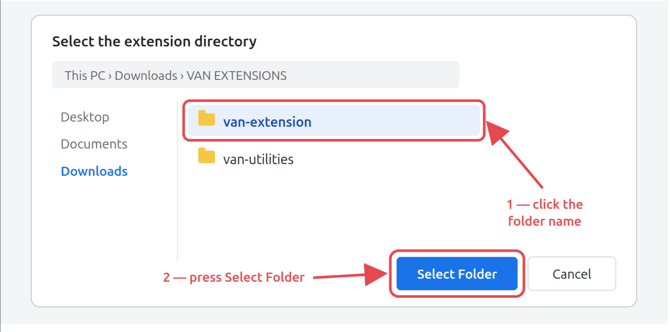
Pick the VAN Loop extension's folder
In the window that opens, go to Downloads → VAN EXTENSIONS, click the extension's folder and press Select Folder:
Downloaded more than one extension? Repeat Load unpacked for each folder/extension.
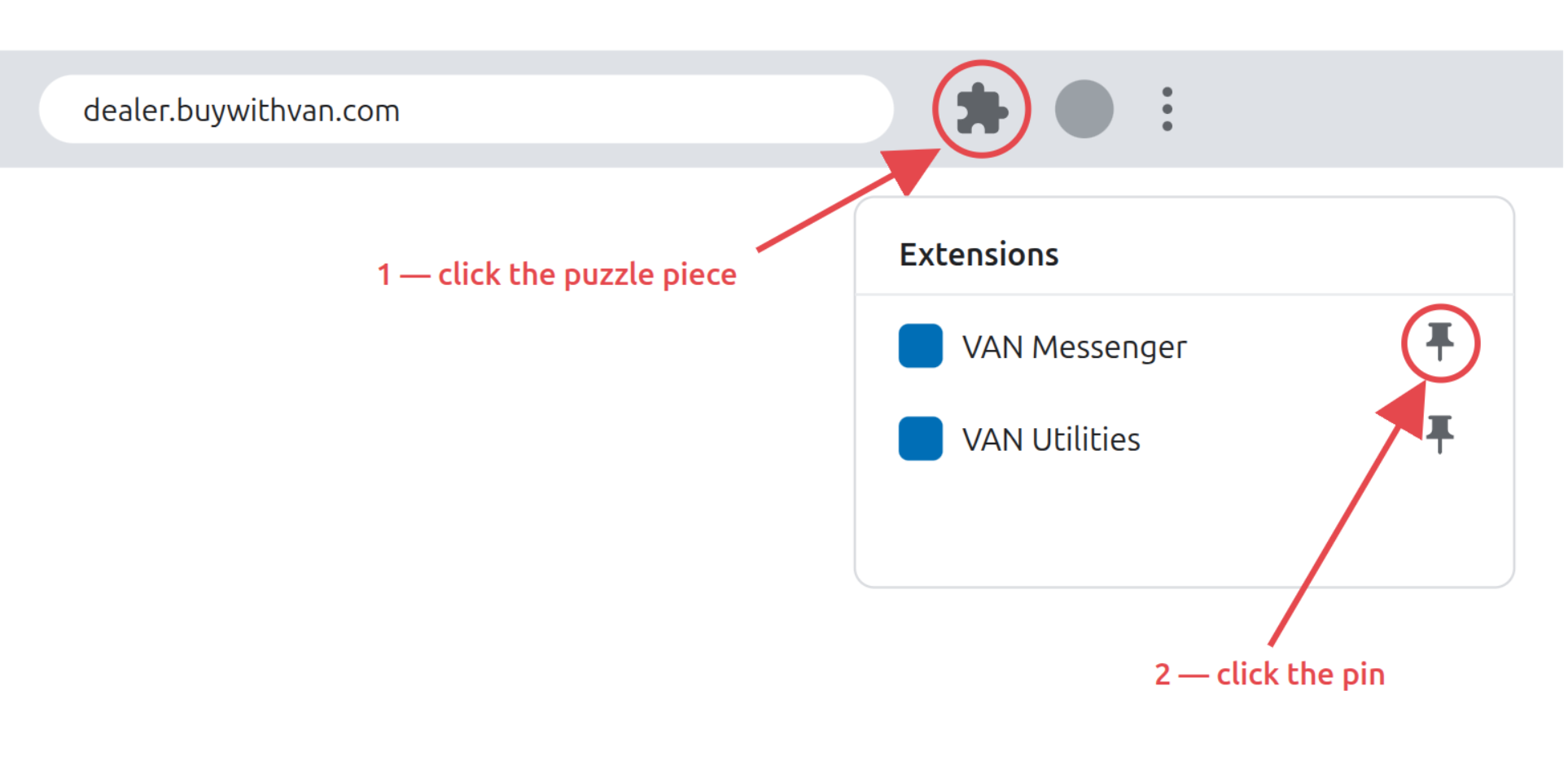
Pin it to the toolbar
Click the puzzle piece next to the address bar, then the pin next to each VAN extension. The icon stays visible next to the address bar, always one click away

Open and login
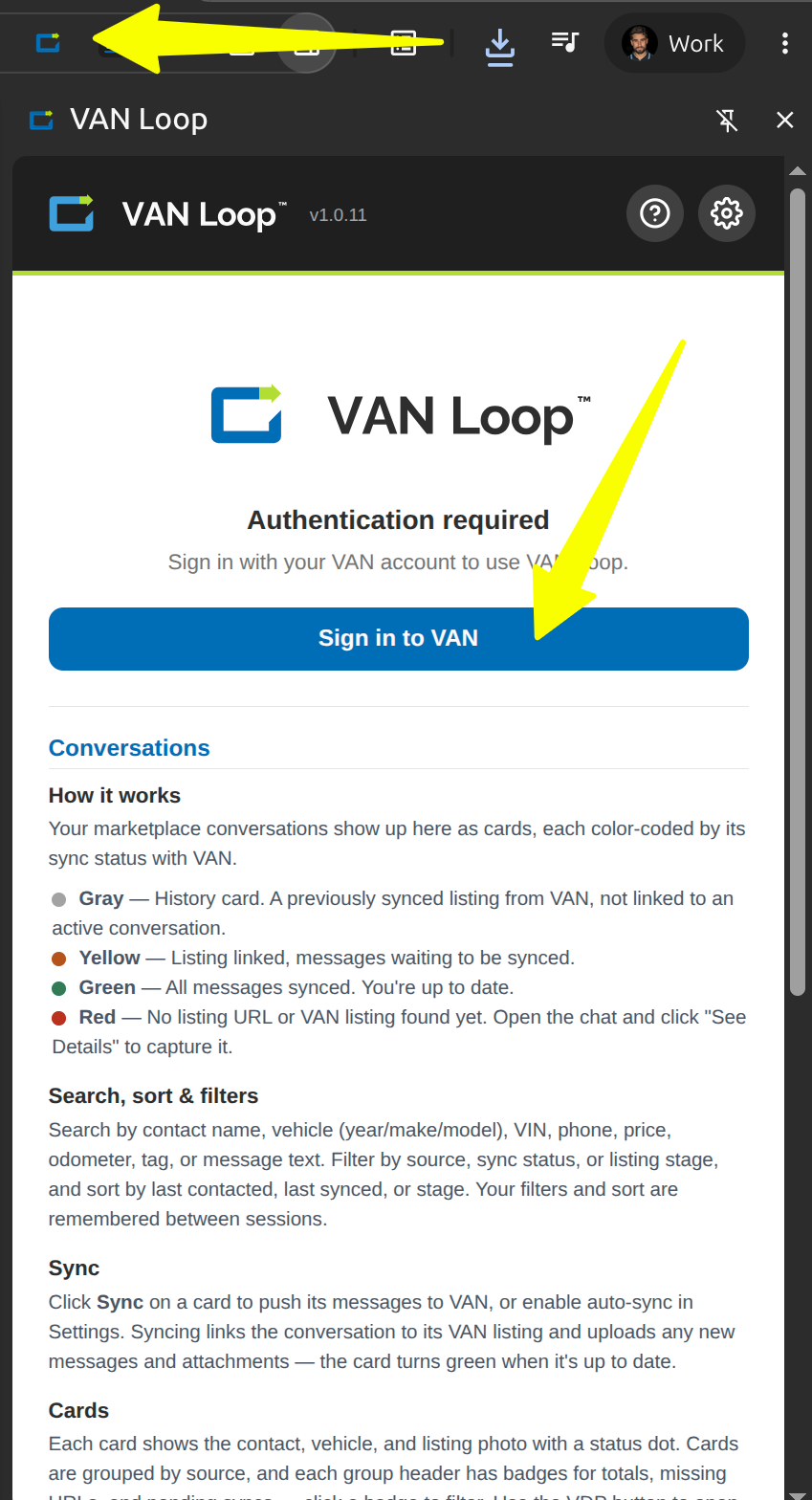
That's it. It will look for updates every 30 minutes
Manual updating later is one button: follow these steps