![content.buywithvan.comhs-fshubfsvan-logo-white-1.png]](https://knowledge.buywithvan.com/hs-fs/hubfs/social-suggested-images/content.buywithvan.comhs-fshubfsvan-logo-white-1.png?width=120&height=48&name=content.buywithvan.comhs-fshubfsvan-logo-white-1.png)
This feature is included in Professional and Accelerated tiers, and the limit of plans created may vary depending on your tier.
Standard accounts do not have this feature. Compare plans here
This quick action of the VDP, if enabled, gives the users an easy way to create a batch of tasks predefined for the manager or person responsible on the client side and the Acquisition Coach. You can learn more about the follow-up plans creation and request by clicking here.
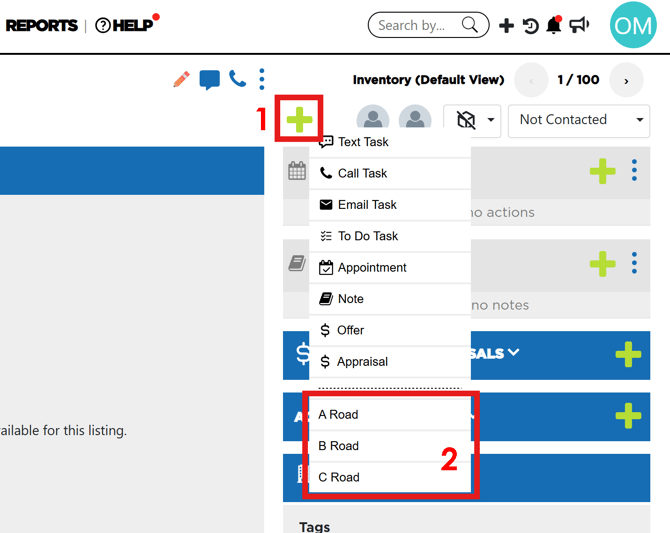
In order to add an already created follow-up plan to your VDP, you must click on the ➕ icon (1) located on the top-right section of the VDP and select the desired follow-up plan from the options available in the menu (2). Once clicked the selected option, a confirmation window with the description of the follow-up plan will appear.
Here's an example: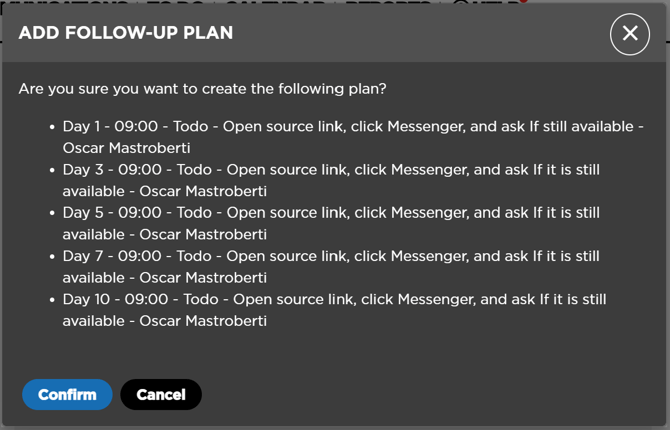
Once confirmed, all the listed actions will be created with dates and times set based on the plan description.
All the actions created will have the following information:
- Day # - Amount of days from the follow-up plan execution when a particular action will have its due date
- Time - Time when this action should be done
- Action Type - The type of task the action has. They may be:
- To Do
- Calls
- Texts
- Emails
- Notes
- Appointments
- Action Description - Content of the particular action created.
- Assigned to - User assigned to this action. If the user assigned is not the current user, they will receive the proper notification
As explained in the Follow Up creation article, the plans can be configured to skip weekends. This way, the system won't count Saturdays nor Sundays as part of the plan and after a Friday, will resume the count on the next Monday.
In Example, if you have a Follow up Plan that
- Has a To Do task after 1 day, and Skip Weekend ON
- Has a To Do task after 3 day, and Skip Weekend ON
- Has a To Do task after 6 day, and Skip Weekend ON
and if you execute that Plan on a FRIDAY, it will create the 3 tasks as follows:
- To Do Task day 1 -> Due date on Monday (Skip Weekend ON applied)
- To Do Task day 3 -> Due date on Monday (Skip Weekend ON not apply)
- To Do Task day 6 -> Due date on Thursday (Skip Weekend ON not apply)