![content.buywithvan.comhs-fshubfsvan-logo-white-1.png]](https://knowledge.buywithvan.com/hs-fs/hubfs/social-suggested-images/content.buywithvan.comhs-fshubfsvan-logo-white-1.png?width=120&height=48&name=content.buywithvan.comhs-fshubfsvan-logo-white-1.png)
Don't have the VAN Loop yet? Install the desktop app first and then download it following these steps
Update required - Warning message
When opening the extension and this warning message "Update Required" appears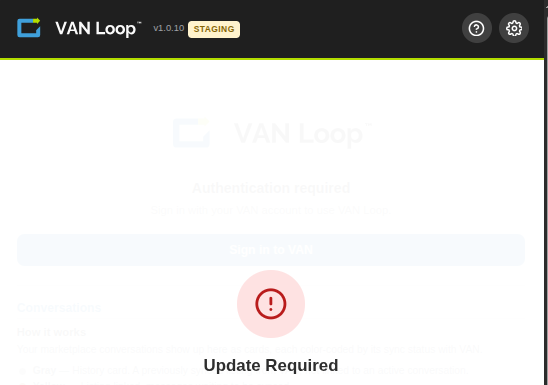
Check for updates and download the updated
-
Open the VAN Extensions Manager desktop app in your Windows/macOS
-
On the top right corner, click CHECK FOR UPDATES
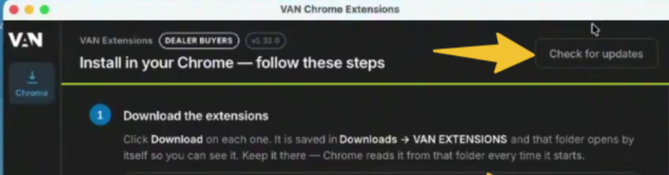
-
Wait until the button turns blue, and then shows UPDATE ALL.
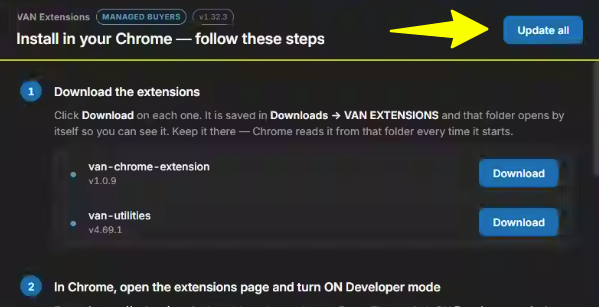
- Click Update All
- In the first row, where "van-chrome-extension" (This is the VAN Loop old name) click the blue DOWNLOAD button
-
That's it: the updated version of the VAN Chrome Extension / VAN Loop has been downloaded. The blue Download button will remain the same.
Reload the extension inside Google Chrome
-
To reopen the extension's panel, close the VAN Loop by clicking the x button
-
- Open it again
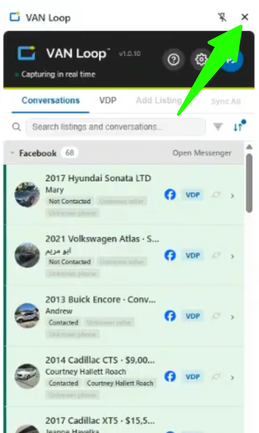
Alternatives options to reload the extension inside Google Chrome
If the previous option didn't show the latest version, then try these detailed steps.
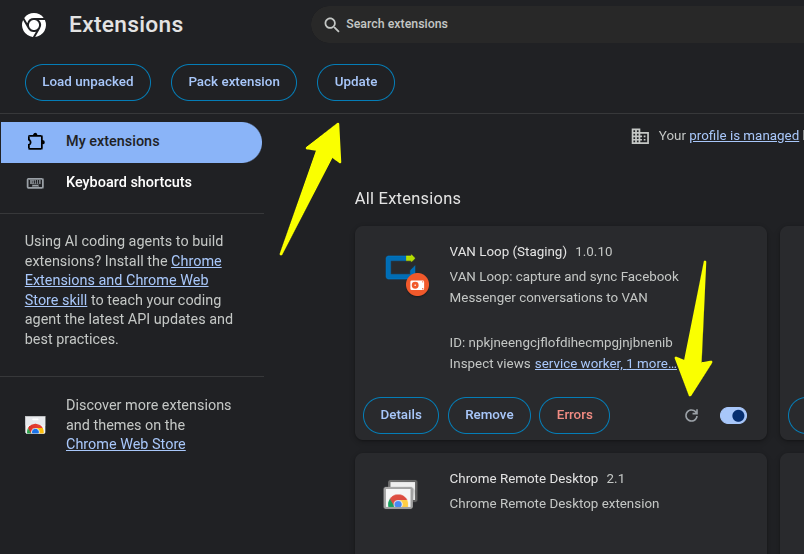
Option A: Update all extensions
- Inside the address bar, paste "chrome://extensions" (aka Chrome's extensions manager)
- Click the global Update, that updates all chrome extensions including VAN's
- Or click the reload button only at VAN Loop card
Option C: Relogin
- Sign out from VAN and from VAN Chrome Extension / VAN Loop
-
Sign back in
Option C: Reopen Google Chrome
- Close Google Chrome
-
Reopen Google Chrome and