![content.buywithvan.comhs-fshubfsvan-logo-white-1.png]](https://knowledge.buywithvan.com/hs-fs/hubfs/social-suggested-images/content.buywithvan.comhs-fshubfsvan-logo-white-1.png?width=120&height=48&name=content.buywithvan.comhs-fshubfsvan-logo-white-1.png)
-
Download the desktop installer
-
AMD64 (x86_64 / Intel) Intel processor for Mac sold between 2006 ~2020
-
ARM (ARM64 / Apple Silicon): Mac processors M1, M2, M3, M4, etc. sold after late 2020
-
-
Unzip and execute it
-
Allow/unblock the installer
-
Go back to Chrome and install our extension
Allow/Unblock the installer
- After downloading, double-click the downloaded .zip file and extract in <you username>/Downloads/VAN EXTENSIONS
-
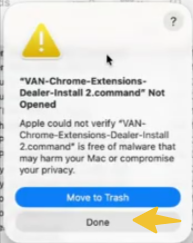
Run it — and expect macOS to block it the first time
-
Double-click
VAN-Extensions-Manager-Install.command. macOS refuses it and says -
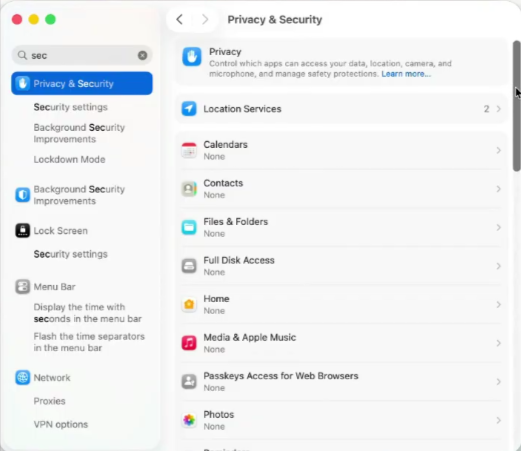
Open System Settings → Privacy & Security
-
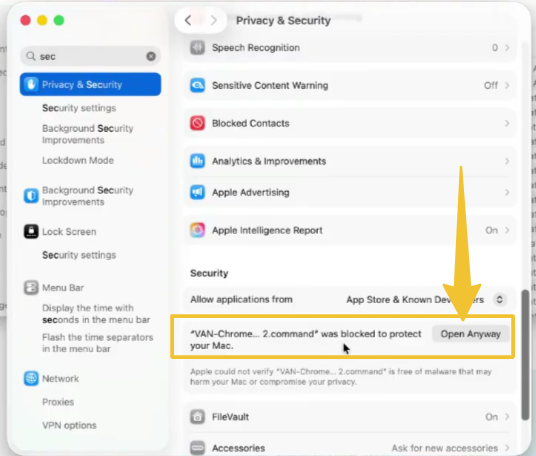
scroll down to Security.
-
-
You will see a line about
VAN-Extensions Manager-Install.commandbeing blocked — click Open Anyway and confirm. -
Enter your Mac password if asked. It is your own computer's password — nothing is sent anywhere.
-
A black Terminal window opens and prints a few lines — that is the installer working, not an error.
- When it says Done, press Enter to close it.
- The installer opens normally after that. Click through it.
-
You will never be asked for an administrator password. VAN Extensions Manager setup installs only for your user account. If something asks for an admin password, stop and message support — that is not our installer.
- If you can't move forward
-
If the file disappears right after extracting, your antivirus quarantined it. Extract the zip again. Do not turn your antivirus off — if it happens twice, message support with your antivirus name.