![content.buywithvan.comhs-fshubfsvan-logo-white-1.png]](https://knowledge.buywithvan.com/hs-fs/hubfs/social-suggested-images/content.buywithvan.comhs-fshubfsvan-logo-white-1.png?width=120&height=48&name=content.buywithvan.comhs-fshubfsvan-logo-white-1.png)
The system consider as Pending Actions to all the tasks, appointments and notes which has not reached yet a terminal status (Usually those status are Completed or Deleted).
When the user, by any reason, decides that there's no reason to keep working on the listing, they can change the status of all pending actions with just one click. 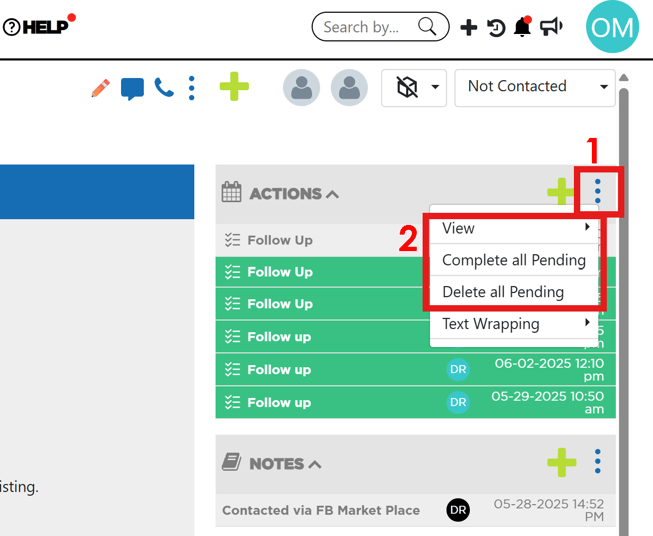
In order to interact with the pending action features of your VDP, you must click on the ⋮ icon (1) located on the top-right corner of the Actions or Notes section and select the desired option available in the menu (2). The different options you will find in this menu are:
- View - This option will allow you to visualize all the items of the section, or just the ones with a pending status
- Complete all Pending - This option allows to complete all pending action, defining some specific behavior based on the different action types
- Delete all Pending - This option allows to delete all pending action, defining some specific behavior based on the different action types
Complete all Pending
When you click on this option, the following window will appear:
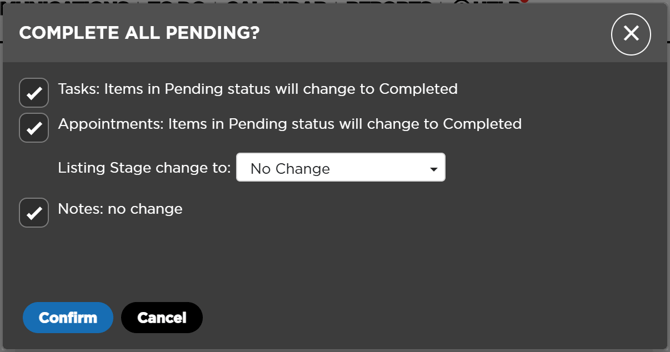
As previously described, this window will give the users the option to decide on how to proceed with the different types of actions when completed.
- In case of manually complete appointments, this could trigger a change of stage in the listing. For that reason, the Listing Stage change specifies if there will be no changes on the listing stage, or if it will change the stage according to the current workflow.
- Notes do not have a completed status (their status may be Open or Deleted), therefore, no changes will be made on them.
Delete All Pending
When you click on this option, the following window will appear:
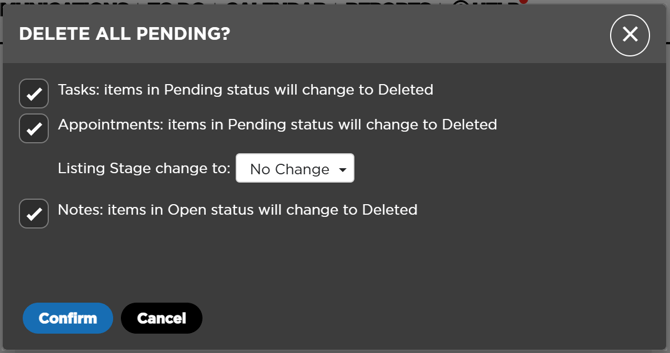
As previously described, this window will give the users the option to decide on how to proceed with the different types of actions when deleted.
- When deleted, appointments trigger no change of stage in the listing.
Pending Actions on Listing Stage Change
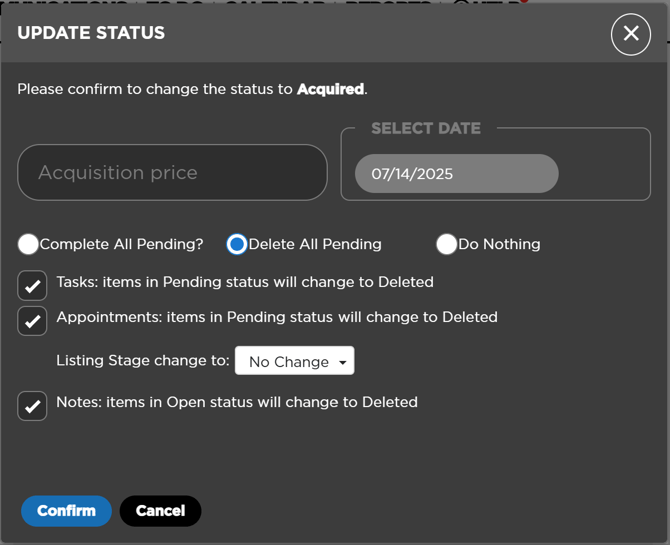
During the update of the listing to certain stages (like Pass, DNC, Sold, Acquired, etc.), the system will ask the user on what to do with the pending actions as shown below using the change to Acquired stage as example:
Scheduled Messages
The scheduled messages feature is included in Professional and Accelerated tiers.
Standard accounts do not have this feature. Compare plans here
In case your account has the Scheduled Messages feature enabled, the system will ask you on how to proceed with those message on each Delete all Pending scenario. There might be cases when, after a change of stage, you want to keep the scheduled messages, and other times when you don't. If you want to know more about how to send messages, click here.