![content.buywithvan.comhs-fshubfsvan-logo-white-1.png]](https://knowledge.buywithvan.com/hs-fs/hubfs/social-suggested-images/content.buywithvan.comhs-fshubfsvan-logo-white-1.png?width=120&height=48&name=content.buywithvan.comhs-fshubfsvan-logo-white-1.png)
This feature is included in Professional and Accelerated tiers.
Standard accounts do not have communication. Compare plans here
 Messaging sellers from the VDP is really simple. Either by clicking on the Send Message or call icons from the seller information section, or through the reply button on the <Communication History Section>, the Send Message window will appears.
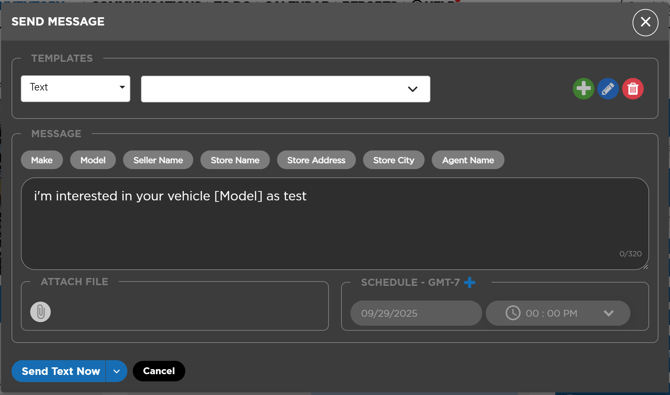
The components of this window are:
- Templates Section - From this area, the user can perform the following actions:
- Message Type Selector - In this menu the user can choose message type in order for the system to show the available templates for that type in the Template Menu. The available options are:
- Text
- Facebook (if active)
- Kijiji (if active - This feature is only available for canadian clients)
- Template Selector - Select a pre-made template for the selected type of message in the Message Type menu. You can find more information about the default templates here
- Create a new template button (Global or Local)
- Modify an existing template button
- Delete a template button
- Message Type Selector - In this menu the user can choose message type in order for the system to show the available templates for that type in the Template Menu. The available options are:
- Message Section - This is where the message is written from scratch or through a template previously selected. The components of this section are:
- Wilcards - A group of buttons which allow the user to complete the message with information from the VDP (Vehicle Make, Seller Name, Agent Name, etc.). You can find a full list of the wildcards available and more information about them here
- Message Content - In case the user selected Email as the type of message, an additional field will appear above the content field to complete the email subject
- Attach File Menu - There may be some restrictions regarding size and format of attached files. you can learn more about this here
- The system allows you to add emojis in the message content. If you are interested in how to do it, click here.
- Send Button - This button has two functions:
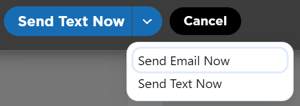
- Open a menu to select the communication channel used for the current message (right side). In this menu the user can choose between the different kinds of messages available to send:
- Text
- Facebook (if active)
- Kijiji (if active - This feature is only available for canadian clients)
- Send the message through the selected communication channel (left side)
When the Send Message window opens, the communication channel preselected by default is chosen according to the following priority order:- Type of last non-external message in the communication history
- If there's none non-external message, the first communication channel available (Priority order: Text/Form/Email)
- If none, the Send Button will be disabled (grey color) due to there's no communication channel available
- Open a menu to select the communication channel used for the current message (right side). In this menu the user can choose between the different kinds of messages available to send:
If the communication channel selected to send the message has no contact information associated in the VDP, the Send button will be disabled.
Example: Trying to send a text without Seller's phone number completed.
Once sent, the message will appear in the Communication History section of the VDP.
You can learn more about messaging proper procedures with the Outbound Word Tracks articles of the Guides section.
Scheduled Messages
In case your account has the Scheduled Messages feature enabled, the system will allow you to set a sending date and time during the messages creation in order for them to be sent in the future automatically. You can learn more about scheduled messages here.
Send Messages as Batch Actions
You can select multiple listings in order to send a massive message to the sellers (this messages can be also scheduled).
In order to send messages as a batch action, the selected listings must follow some specific criteria:
- The seller was not reported as Dealership (Full Name, phone, email or full address)
- A phone number that is: valid, textable, was not blocked before, was not marked as DNC, and is not a landline
- An email that is valid. By default, the subject will be "Inquiry about your <Year> <Make> <Model>"
- Belong to a source that we can message
- Attachments: we will attempt to send it in every possible case
Currently Not supported Listings:
- Facebook listings without a phone number
- Phone numbers: DNC, landline
- Listing Stage: DNC, Pass