![content.buywithvan.comhs-fshubfsvan-logo-white-1.png]](https://knowledge.buywithvan.com/hs-fs/hubfs/social-suggested-images/content.buywithvan.comhs-fshubfsvan-logo-white-1.png?width=120&height=48&name=content.buywithvan.comhs-fshubfsvan-logo-white-1.png)
On the top-right corner of the VDP, all the way to the right, is the status dropdown, which has several different statuses to choose from.
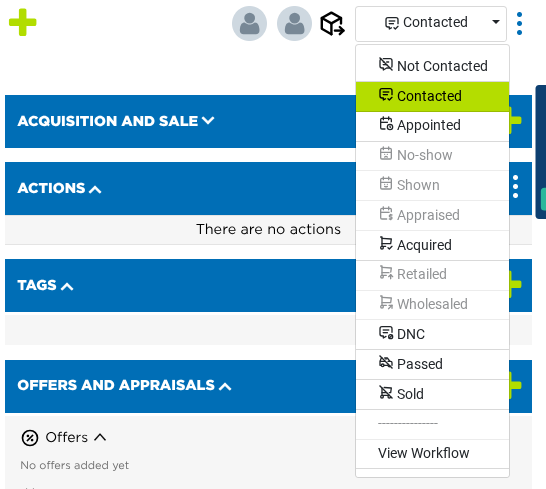
- Not Contacted - Before any communication has occurred with the seller, it will remain in a not contacted stage.
- Contacted - Select once the communication with the seller happened.
For any listing that has been manually engaged from outside of the platform (through Facebook Messenger, for example) the end user will need to manually switch the status from not contacted to contacted.
This stage change is important, because it will simultaneously remove the listing from the Not Contacted View on your inventory module over to the Contacted View.
If you're interested in learning about the different views and what they mean. Check out our article titled Default Inventory Views.
- Appointed - The vehicle has an appointment set on it. It is automatically set when an appointment is created on the VDP. From this stage, depending on the appointment result, the acquisition process can go to:
- Shown - The user set the appointment as Shown in the platform
- No Show - The user set the appointment as No Show in the platform
- Appraised - A shown vehicle has been appraised. It is automatically set when an appraisal is created on the VDP.
- Acquired - The appraised vehicle has been acquired
You may even take it a step further, and change it to a wholesaled or retailed status. Once it has been marked as acquired.
- Pass - If the listing is not something that interests you, you may pass on it which will remove it from your inventory lineup
- DNC - Otherwise known as a Do Not Contact
About the DNC
- Once the listing has been marked as a DNC, no automated text messages will go out to that phone number again. Even if the seller chooses to post a new vehicle in the future, as long as they have that same contact number, the system will recognize it and will not send any automated texts.
- Once you click DNC, the system will also allow you to block any inbound communications from the seller.
- DNC's can only be reversed by your Acquisition Coach.
- Sold - This status should be selected anytime a seller responds that the vehicle is no longer available. If this status is selected, it's a good idea to put notes in, that way future users will know what actions have been taken and why.
- Retailed - This status is selected when an acquired vehicle is sold to a private buyer
- Wholesaled - This status is selected when an acquired vehicle is sold to another dealership or business
Listings on any of the Appraised, Acquired, Retailed or Wholesaled stages will not be able to be downgraded to a previous stage, not individually nor in batch actions. If you want to know more about batch actions, click here.
Automated Stage changes during communications
The system uses AI technology to automatically change statuses. If certain words are mentioned by the seller during your communication.
If the word STOP is said, the system will use context clues to identify the nature of the word, and will determine at that point whether or not to designate the DNC status automatically on your behalf. It can also mark a listing as Sold automatically if mentioned by the seller.
The software is pretty accurate, but sometimes gets the context wrong. As mentioned previously, if a listing is wrongly marked as a DNC, or sold unit, please notify your Acquisition Coach and they will reverse the status for you.
Listing Stages Workflow
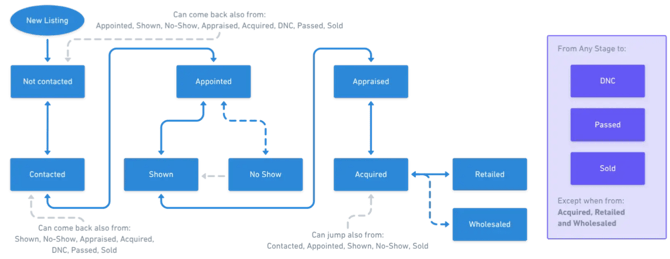
The following workflow can be found at the end of the stages menu (by clicking on the View Workflow option) and it explains which stages can you change to, according to the current active stage on the VDP: