![content.buywithvan.comhs-fshubfsvan-logo-white-1.png]](https://knowledge.buywithvan.com/hs-fs/hubfs/social-suggested-images/content.buywithvan.comhs-fshubfsvan-logo-white-1.png?width=120&height=48&name=content.buywithvan.comhs-fshubfsvan-logo-white-1.png)
This button/menu is located on the top-right corner of the Inventory, Communications, To Do, Acquisitions and Notifications modules.
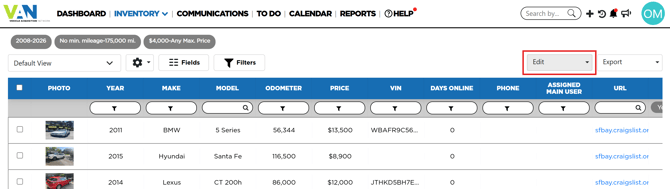
It allows to perform specific actions on any amount of listing selected on the active view at the same time.
By default it is grayed, and in order for the button to be enabled, at least one listing must be checked (by using the checkbox on the far left of each listing).
Menu Content
Due to the crescent amount of actions, now the menu is divided in categories.
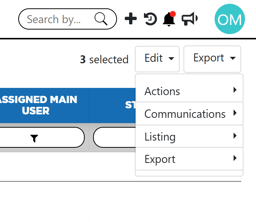
Actions
- Follow-up plan - Allows to set a Follow-Up plan for the listings related with the selected records
- A Road
- B Road
- C Road
- Pending Actions - This actions work on all pending actions and notes located at the VDP of the listings related with the selected records. Our options here are:
- Single Action - Creates any of the single actions below for the selected listings at once
Communications
- Send Message - Allows to send instant or scheduled messages to the listings related with the selected records
- Mark as Responded - Marks listings' conversations (and all their messages) as responded
Listing
- Stage (Improved) - Allows to change the listings' current to any other stage (as long as the change follows the standard stages workflow).If you want to learn more about stages and how they work, click here
- Users & Followers - Allows to assign a Main User, a Secondary User, or any amount of followers for the selected listings
- ℹ️ Use it when inactivating an old user and reassign them to a new one!
- Tags - Allows to create and/or assign tags as in the Tags section of the VDP
- Mark Notifications as Read - Marks listings' notifications as read
- Report as Dealership - Applies the Report as Dealership process on the listings related with the selected records.
Export
In this category you will found actions that allows to push multiple listings through different integrations (As long as their requirements are fulfilled)
Listings selected for these batch actions will be processed correctly only if they fulfill the requirements for the respective platforms:
- CRM
- Vehicle has not been already Pushed (Disregard in case your CRM allows multiple pushes)
- Listing has a phone number
- vAuto
- Vehicle has not been already Pushed
- Listing has a VIN number
- Listing has a valid zip code
- VinCue Appraisal
- Vehicle has not been already Pushed
- Listing has a VIN number
- Listing has a TRIM value