![content.buywithvan.comhs-fshubfsvan-logo-white-1.png]](https://knowledge.buywithvan.com/hs-fs/hubfs/social-suggested-images/content.buywithvan.comhs-fshubfsvan-logo-white-1.png?width=120&height=48&name=content.buywithvan.comhs-fshubfsvan-logo-white-1.png)
On your Inventory ↗️, directly under the navigation main bar, there are one or more non-clickable gray buttons indicating the main search criteria applied currently to the inventory. By default, this criteria is defined when the user contracts the system and it is called System Search.

Any listing that fits this system search criteria that is within the account territory, will be displayed below.
Users can have additional manual searches, always within the System Search criteria.
If the new manual search have settings outside the System Search parameters our boundaries, it will not just return any results. For example:- If the System Search looks for vehicles with years between 2008 and 2014, a new manual search couldn't request for vehicles from the 2006
- Users won't be able to search for Vehicles Makes that were excluded on the System Search.
To add an additional Manual Search, follow these steps:
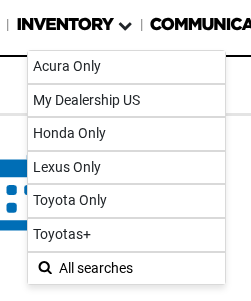
- Click on the arrow located right next to Inventory on the Navigation Bar
- Select the option 🔍All Searches
- Click on the ➕ from the Inventory Settings - Searches section
- Complete all the fields needed. If you want to see all the filter available during a manual search creation/edit, click here
- Click on the Save button
While creating a new manual search, the first parameter requested is the Inventory type. The options given on this section are:
- All - This option will allow the user to create a search for the system listings database using predefined parameters (Make, year, price range, etc.)
- Opportunities - This option will allow the user to get information from an external provider like Autotrader, Kelly Blue Book, etc. The user should contact their Acuisition in order to setup the parameters for this option to work properly.
- Acquisitions - This option is not a search but a view that shows all the vehicles that have been acquired
- vAuto Opportunities - This option will allow the user to get information from the external provider vAuto. Learn more about this here
- Live Scrapping Opportunities - This option has been deprecated and is soon to be eliminated from the system
Once a new manual search was created, it could be edited or deleted from the same place it was created.
Adjustment to the System Search criteria, only can be made contacting the account's Acquisition Coach by sending an email with the requested edits.
The Acquisition Coach is also able to filter out specific makes, models and descriptive keywords, improving the criteria according to the user's specific needs.
Manual Search exclusion
You can combine the Manual Search concept to create a set of manual searches that can actually exclude content from the System Search . For Example:
- Have a specific manual search that only shows listings filtered by Year's range, and or
- Have a specific manual search that only shows listings filtered by one Make, and or
- Have a specific manual search that only shows listings filtered by one Model, and or
- Have a specific manual search that only shows listings filtered by Odometer's range, and or
- Have a specific manual search that only shows listings filtered by Price's range
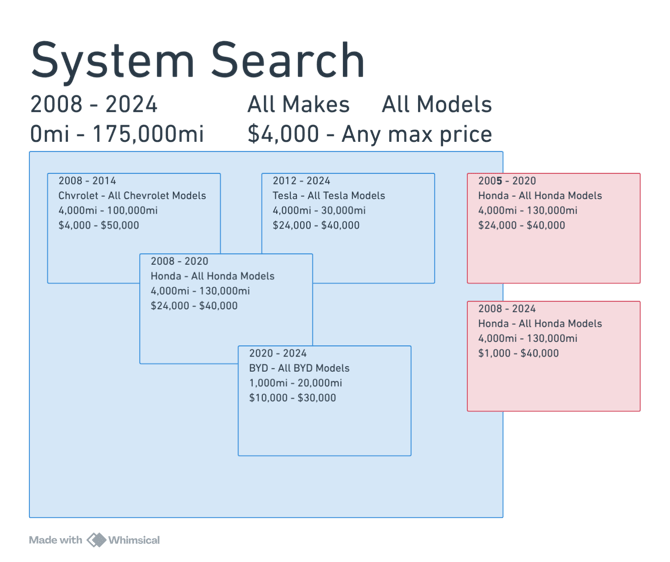
The added manual searches will look like this: