![content.buywithvan.comhs-fshubfsvan-logo-white-1.png]](https://knowledge.buywithvan.com/hs-fs/hubfs/social-suggested-images/content.buywithvan.comhs-fshubfsvan-logo-white-1.png?width=120&height=48&name=content.buywithvan.comhs-fshubfsvan-logo-white-1.png)
In this section, the users will be able to add detailed notes regarding this listing. You can see in which cases it is recommended to use notes (and when you don't have to use them) in our article about Notes Best Practices.
To add a note to a listing follow this step inside the Notes section of the VDP:
- Click the plus icon ➕
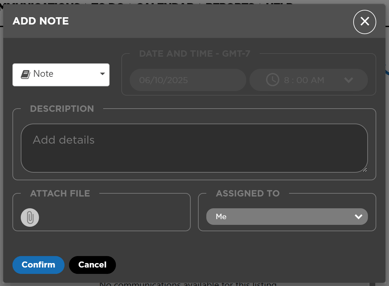
- Enter a description/content for the note
- Attach a file - is not required. To know more about attachments, click here
- Assigned To - The note will default to the user writing the note. The user can use the dropdown to assign to another member of the team if desired
- Click Confirm in order to save
Anyone who has a login is able to add a note, and they are time and date stamped with the full name of the user who entered the note.
It's important to be as descriptive as possible while note taking, so that other users are able to understand the work that has been completed up until that point.
Other Options
This options affects both, the Actions and the Notes section. If you click on the ⋮ icon located on the top-right corner of this section a menu with the following options will appear:
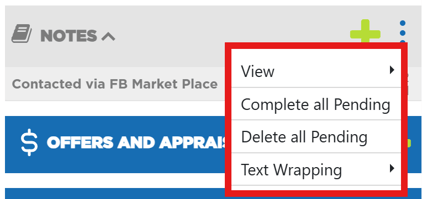
- View* - From this option you can choose between visualize all the available actions and notes, or just the pending ones
- Complete all Pending* - This option will complete all pending actions
- Delete all Pending* - This option will delete all pending actions and notes
- Text Wrapping - This option will allow you to expand the description area of the actions and notes in order to visualize all the text.
* If you want to know more about Pending Actions and these options work, click here.