![content.buywithvan.comhs-fshubfsvan-logo-white-1.png]](https://knowledge.buywithvan.com/hs-fs/hubfs/social-suggested-images/content.buywithvan.comhs-fshubfsvan-logo-white-1.png?width=120&height=48&name=content.buywithvan.comhs-fshubfsvan-logo-white-1.png)
The Scheduled Report feature allows you to send a weekly report to selected users with the information of all the records from the current inventory view.
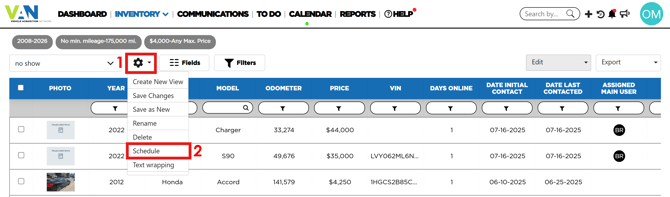
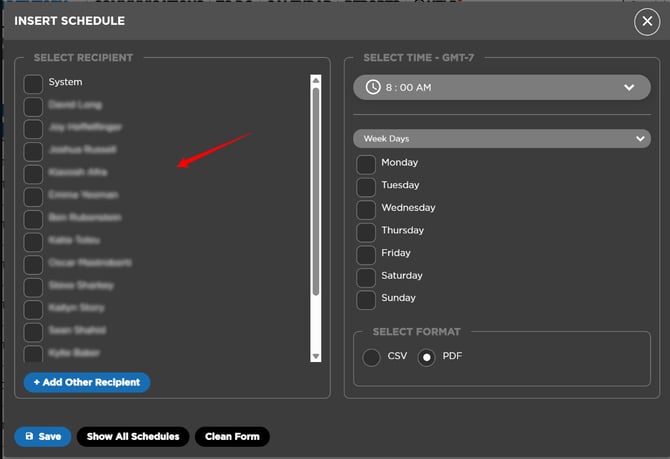
You can access this feature by clicking on the ⚙️ icon (1) and then selecting the Schedule option (2). Once you do it, the following window will appear:
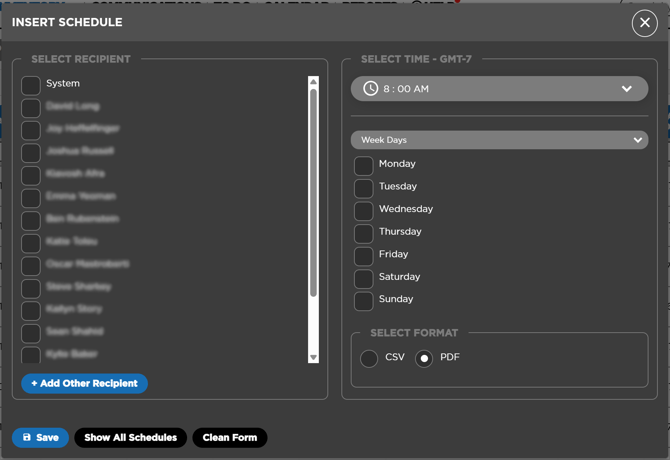
This window has the following components:
- Select Recipient section - This section allows you to select the recipient/s of the report email. This list contains all the active and inactive users, and the button Add Other Recipients allows you to add new users in order for them to receive the report
+ Add Other Recipients - If you want to add another recipient, you need to request the creation of a new user for that recipient.
- Select Time section - In this section you will be able to select the day(s) of the week and time of day the system will send the report email
- Select Format section - Here you can select if the information shared will have PDF or CSV format
- Save button - Generates the new scheduled report and opens the window where all scheduled reports are shown
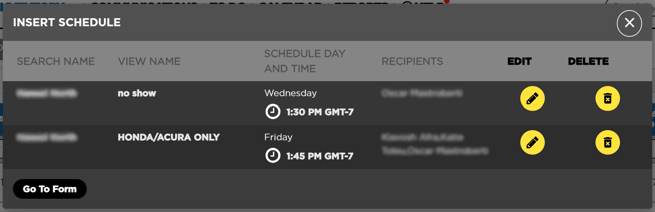
- Show All Schedules button - This button will open a window that shows all the created schedules already in the system, and allows you to edit or delete them. Here's an example of what this window looks like:
- Clean Form button - By clicking here, all changes made on the window will be erased
Reports Reception
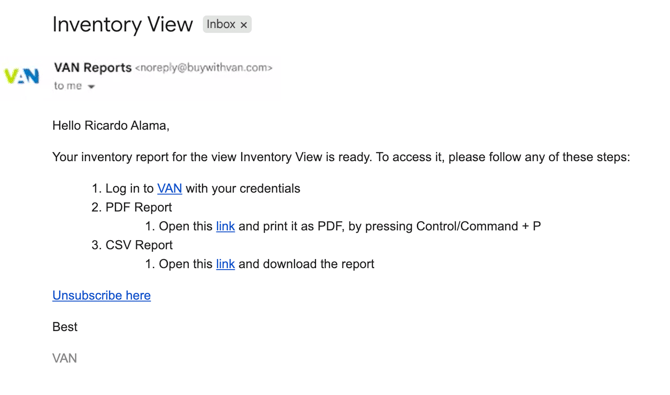
On the date and time scheduled for the report to be sent, all the recipients will receive an email with access to the report. This email will offer the possibility of open the report in different formats and, in all cases, the sender will be VAN Reports, and the email subject will be the name of the inventory view this report was made from.
PDF Format
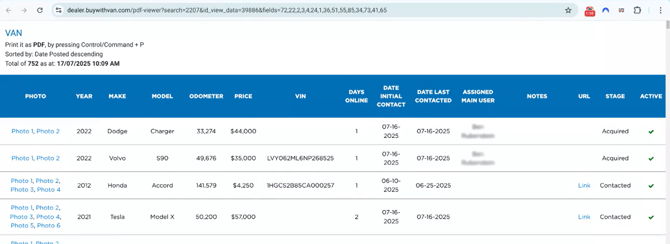
The reports made in this format will give the recipient a link to access the platform and visualize the PDF report, allowing them to print it if needed.
The PDF report will look like this:
CSV Format
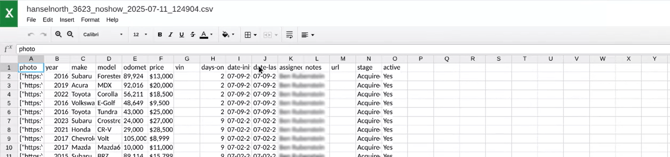
The reports sent with this format are pretty similar to the previously mentioned, but with the distinction that the link received is for a direct download of the CSV report file.
The CSV report will look like this:
In order for any change on a view to be reflected on the reports, those changes must be saved before the reports are generated.
This reports can be obtained in real time from the Export menu of the Inventory module.
Unsubscribe from a Scheduled Report
- Follow these steps
- Schedules - This button will open a window that shows all the created schedules already in the system
- Find the one you want to stop receiben, and then click Edit ✏
- Find your name and unselect yourself of the list, and save the changes
- Find the one you want to stop receiben, and then click Edit ✏
Alternatively, if you are the only user getting this report, you can Delete 🗑 the report