![content.buywithvan.comhs-fshubfsvan-logo-white-1.png]](https://knowledge.buywithvan.com/hs-fs/hubfs/social-suggested-images/content.buywithvan.comhs-fshubfsvan-logo-white-1.png?width=120&height=48&name=content.buywithvan.comhs-fshubfsvan-logo-white-1.png)
This integration transmit listings information between both platform in order to be visible on both sides.
At the beginning of each day, all the listings information in VAN is sent to VinCue. With that information, VinCue sends back the information they have on the matching listings for us to show it in their respective VDPs as shown below:
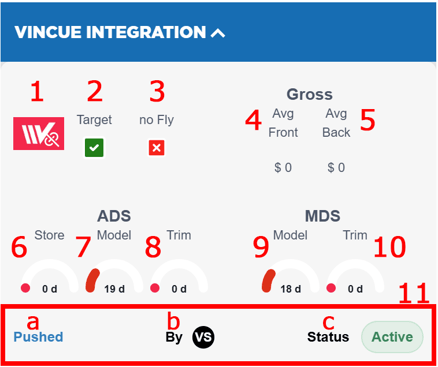
The information displayed in this section of the VDP is:
- Link to the ACV (Actual Cash Value) - In the cases when VinCue provide this information, this part of the section will show on its bottom right corner a link icon that, when clickable, will open a PDF file with an assessment of the vehicle. If this information is not being provided by any reason, the link icon will be crossed out.
- VinCue Target - Indicates if the listing is in a VinCue buying plan or not
- VinCue No Fly - Indicates if the listing is marked as a trash listing on VinCue side
- Gross AVG Front Profit - Shows the information obtained by VinCue through their DMS integration with their dealerships
- Gross AVG Back Profit - Shows the information obtained by VinCue through their DMS integration with their dealerships
- VinCue Store ADS - Shows the Average Days to Sell on the store
- VinCue Market ADS Model - Shows the Average Days to Sell for this model
- VinCue Market ADS Trim - Shows the Average Days to Sell for this trim
- VinCue MDS Model - Shows the Market Days Supply for this model
- VinCue MDS Trim - Shows the Market Days Supply for this trim
- Push/Request VinCue Appraisal Date/User/Status - Shows the information obtained after an appraisal request to VinCue:
- Pushed - Shows the date the appraisal was requested. This will also be a link to the appraisal created on the VinCue platform
- By - Shows the user who made the appraisal request to VinCue
- Status - Indicates the status of the appraisal
Learn how to request an appraisal from VinCue here.
New Inventory Field
When this integration is active, a new category of fields named VinCue will be available in the Inventory module for users to interact with. These fields are:
- VinCue Target
- VinCue No Fly
- VinCue Market ADS Model
- VinCue Market ADS Trim
- VinCue Store ADS
- VinCue MDS Model
- VinCue MDS Trim
If you want to know more about the Inventory fields, click here.
VDPs Embedded on VinCue
Another new feature this integration provides is VAN tab on the Vehicle Buying Center section of the VinCue platform, where you will be able to open an embedded view of our VDPs when selecting the respective listings.