![content.buywithvan.comhs-fshubfsvan-logo-white-1.png]](https://knowledge.buywithvan.com/hs-fs/hubfs/social-suggested-images/content.buywithvan.comhs-fshubfsvan-logo-white-1.png?width=120&height=48&name=content.buywithvan.comhs-fshubfsvan-logo-white-1.png)
The items displayed in ths section of the VDP are tasks or appointments that are set for the future, either by the user or by a member of their team.
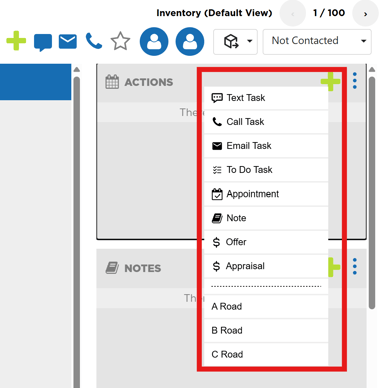
You can click on one of the follow items to learn:
All actions show a date and time. Since they're created, while that date and time is not reached, their status will be Pending, and if the date and time are reached before completing tha action, their status will automatically change to Missed.
Missed actions are highlighted in a bright orange color, and will be displayed not only on the VDP itself, but at the top of the user's Dashboard ↗️ as well.
While the VDP missed actions will remain until they are completed or deleted, the dashboard missed actions will only be displayed for one day. Users can use the views from the To Do module ↗️ in order to keep tracking of all the missed actions.
There are many ways to remove a missed action:
- Complete Action - Clicking on the action and click in the Completed button in order to change the status.
- Modify Action - Clicking on the action and modify the date or the time that the task is set for.
- Delete Action - Same procedure to complete the action but clicking the red trash can button instead of the Complete button.
This will not delete the action, but it will cross out the action, change its status to Deleted and it will be accessible as read only.
Statuses for each type of action
Not all action behaviors are the same and, therefore, their statuses could not be the same either. Below you will find all the statuses belonged to each action type:
- To Do / Text / Call / Email:
- Pending
- Missed
- Deleted
- Completed
- Appointment:
- Show
- No Show
- Pending
- Missed
- Deleted
- Completed
- Note:
- Active
- Deleted
Other Options
This options affects both, the Actions and the Notes section. If you click on the ⋮ icon located on the top-right corner of this section a menu with the following options will appear: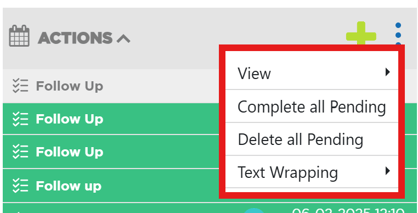
- View* - From this option you can choose between visualize all the available actions and notes, or just the pending ones
- Complete all Pending* - This option will complete all pending actions
- Delete all Pending* - This option will delete all pending actions and notes
- Text Wrapping - This option will allow you to expand the description area of the actions and notes in order to visualize all the text.
* If you want to know more about Pending Actions and these options work, click here.