![content.buywithvan.comhs-fshubfsvan-logo-white-1.png]](https://knowledge.buywithvan.com/hs-fs/hubfs/social-suggested-images/content.buywithvan.comhs-fshubfsvan-logo-white-1.png?width=120&height=48&name=content.buywithvan.comhs-fshubfsvan-logo-white-1.png)
Steps
Scheduling tasks in the VDP is a quick and efficient way to keep track of your activity in one centralized location.
Using a follow up process that includes multiple contacts exponentially increases the chances for a successful acquisition. Learn more about our best practices in this guide, and request the creation of follow up plans to your Acquisition Coach
To schedule a task, go the the Actions section on the VDP
- Click the plus icon ➕
- Click Task (This will open the Add Task modal window)
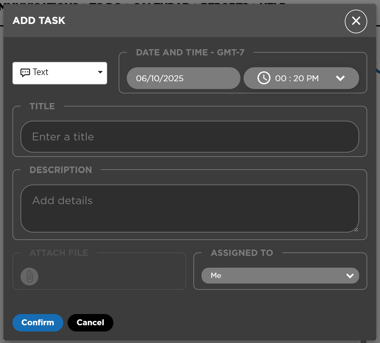
- Check and/or select the type of task - use the dropdown to click on Text, Call, Email or To Do
- Click the specific date on the calendar
- Setting a time for the task. To set a time, click the dropdown arrow by the clock icon and select a specific time
- Enter a title field is required - if you don't enter a title, the task will not save
- Enter a description - is not required
- Attach a file - is not required
- Assigned To - Task assignment will default to the user setting the task. You can use the dropdown to assign to another member of your team if desired
- Click Confirm in order to save
Every time a task is created, the user assigned to that task will receive a notification informing they were assigned to the task.
Tasks will be displayed in:
- The Actions section on the VDP
- The Calendar module ↗️
- The To Do module ↗️
- The Dashboard ↗️ (only during the day the task is scheduled)
Task Types
- Text - Reminder to send a text
- Call - Reminder to make a call
- Email - Reminder to send an email
- To Do - Reminder to take some action