![content.buywithvan.comhs-fshubfsvan-logo-white-1.png]](https://knowledge.buywithvan.com/hs-fs/hubfs/social-suggested-images/content.buywithvan.comhs-fshubfsvan-logo-white-1.png?width=120&height=48&name=content.buywithvan.comhs-fshubfsvan-logo-white-1.png)
This module is included in Professional and Accelerated tiers. Compare plans here
When you first log in, you'll land on your Dashboard. This page is designed to give you an immediate overview of your current activity and scheduled events for today.
At the top of the dashboard you will see the activity that is filtered according to the Dashboard Global Filters*, and they are:
- A specific date/period of time
- The main user of the listings
- The user whose took the action related with the information shown below
These filters will impact in the information shown in the sections located at the bottom of the dashboard that has common fields. For example, if you select in the global filters a specific period of time (Dates) and a Listing Main User, when you'll take a look to the Communications section, it will show only the communications for the filtered period of time of the listings that have the selected main user assigned.
*This section also have an Expand/Collapse All button, which will affect all the Dashboard drag and drop sections

As you can see in the image, for the period of time selected (filter active shown in green) this dealership has set 18 appointments, of which 16 have shown and 15 vehicles have been acquired.
Below that, you will see your message and call activity, once again, for your preferred date range:
What you are seeing from left to right:
- Message Activity:
- This dealership has seen 73 initial outbound messages so far on the period of time selected, either sent by the user or by the automated system.
- The total number of outbound texts (349), including any manual text sent by you, as also any automated Day 6 and Day 15 follow up text sent by the system.
- 60 initial inbound responses to the initial outbound messages.
- The total inbound responses in relation to the total outbound (250).
- Call Activity:
- 100 outgoing calls
- 27 incoming calls.
If the user clicks on the outbound/inbound amounts, a detail report will come up showing the name of the seller, the vehicle information, and the date and time that the communication was made.
Same applies for all the information in bold text for this section.
- the total unique responders amount. Unique responders are defined as the total number of opportunities that have responded to the initial outbound messaging.
If the numbers resulting on the addition of inbound messages and inbound calls match with the total unique responders amount, that means it has been only one inbound response per unique responder, and if the numbers don't match, it would indicate that multiple unique responders have responded to the initial text more than once, sometimes with multiple texts and sometimes with a phone call and a text.
The sections below you will find independent versions of some of the modules shown on the platform main navigation bar. Views , fields or filters set on this section will not have impact in the respective modules pages.
These section can be rearranged and collapsed at your convenience.
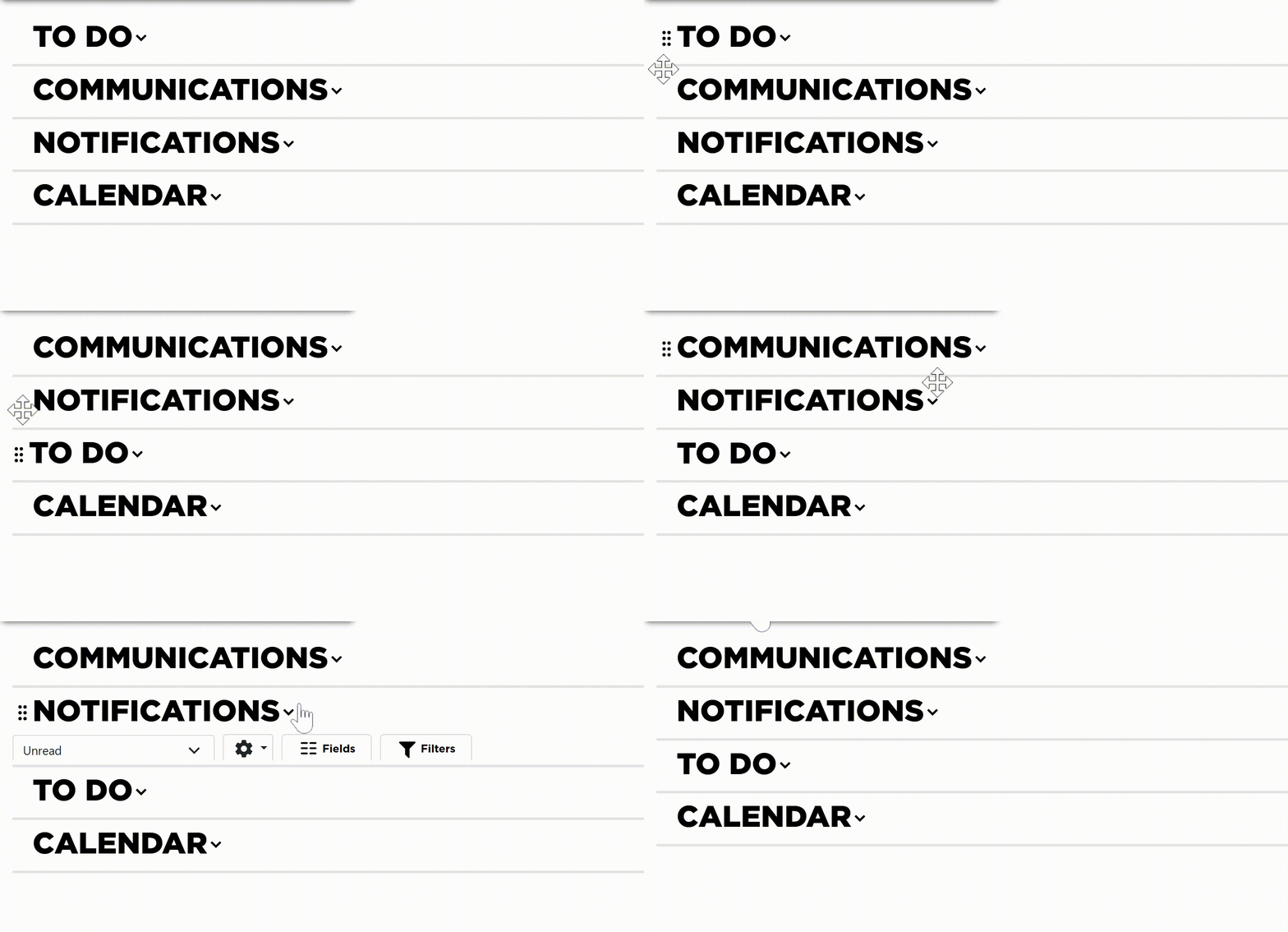
The modules you will have access here are:
- Activity - This module have all the information previously mentioned in this article

- To Do
- Calendar
- Communications
- Notifications
When you open the dashboard for the first time, some of these modules will have some specific default views:
- To Do - Missed and Pending Actions - Shows all type of tasks (except Notes) with the Missed or Pending status for the period of time selected
- Communications - Messages & Calls - Shows all communications for the period of time selected
- Notifications - Unread - Shows all unread notifications for the period of time selected
The system does not auto-generate a follow-up schedule for you or your team, so setting tasks to re-engage with sellers will be imperative towards your success. To learn on how to generate a follow-up schedule, click here.
Mobile Version
When opened in small screens, the dashboard looks has been modified in order to show the information in a more clean way.