![content.buywithvan.comhs-fshubfsvan-logo-white-1.png]](https://knowledge.buywithvan.com/hs-fs/hubfs/social-suggested-images/content.buywithvan.comhs-fshubfsvan-logo-white-1.png?width=120&height=48&name=content.buywithvan.comhs-fshubfsvan-logo-white-1.png)
The Notifications module ↗️ is where you'll find all the activity of the system that is notified (This includes tasks activity, messaging, information updates, etc.), as well as being able to manage this information based on the filters and fields you applied to the views you create.
Creating Views is included in Professional and Accelerated tiers.
Standard accounts have 1 default view. Compare plans here
Learn more about this module's default views here.
Notifications Types
- Incoming Text
- Incoming Call
- Upcoming Task set in user's name
- Upcoming Appointment set in user's name
Notifications Status:
- Blue with 👁️🗨️ icon: Not Viewed
- Gray: Viewed
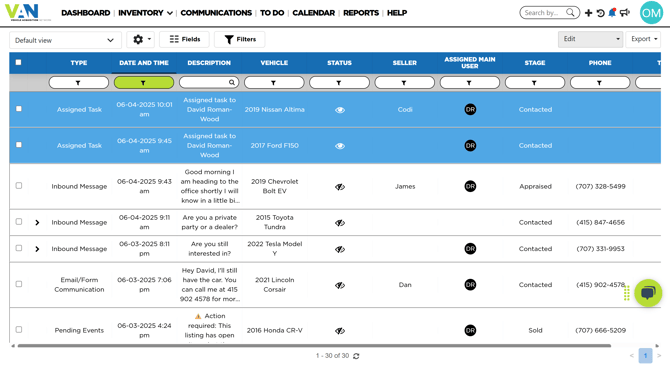
Right under the main navigation bar you'll be able to find:
- Selected View - Where all the communications information is shown
- View Management Tools - Menus used to select which view to visualize, and manage view in general. Learn more about views here
- Fields Button - Allows to select which fields will be shown in the current view. Learn more here
- Filters Button - Its main function is to show/hide the filter buttons shown for each specific field on the view. Learn more about filters behavior here
- Batch Actions (Edit Button) - Allows to perform specific actions on any amount of listing selected on the active view at the same time. For this button to be enabled, at least one listing must be checked. Learn more about how the batch actions work here
- Export Menu - Export views to Pdf or CSV files. Learn more about how the Export Menu works here
Notifications Fields List (by Category)
- Vehicle
- Source - Platform where the listing came from
- Vehicle - Vehicle's year, make and model
- Seller
- Phone
- Seller - Seller's name
- Dealer
- Assigned Main User - Shows the main user assigned to this listing
-
- Tags - Shows any tag attached to a listing
- Communication
- Description - Indicates
- Status - Shows if the notification has been read or not. Read notifications will be colored in blue on the notifications views
- Type - Indicates what type of activity the notification is related to
- Listing
- Stage - Shows the current stage of the listing. Learn more about the different stages here
- Calendar
-
- Date and Time - Shows when the Notification took place
Horizontal Scroll bar
The more fields you add, the wider it will get to navigate
Consider these Operating System settings to always show the horizontal bar
Mobile Version
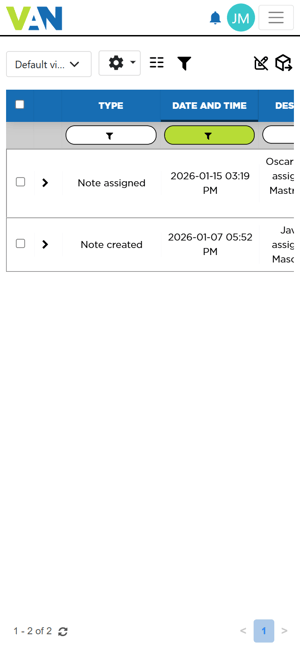
For small screens, the module components have been relocated in order to fit the screen properly.