![content.buywithvan.comhs-fshubfsvan-logo-white-1.png]](https://knowledge.buywithvan.com/hs-fs/hubfs/social-suggested-images/content.buywithvan.comhs-fshubfsvan-logo-white-1.png?width=120&height=48&name=content.buywithvan.comhs-fshubfsvan-logo-white-1.png)
Table of Content:
Views
Most of the platform main modules have the capacity to visualize information in different predefined ways by using views through the following components:

- Views List - Is where users will be able to find their default and custom views. Learn on how to create custom views here
- View Settings ⚙️ - Where views can be created, edited, formated and saved, as well as create a scheduled report where the system will automatically email users a report on their preferred date and time. This menu options are:
- Create New View - Creates a view copying the active view configuration
- Save Changes - Saves any change made on the active view
- Save as New - Saves changes as a new view
- Rename
- Delete
- Schedule (Inventory Module) - Creates a scheduled report where the system will automatically email users a report on their preferred date and time.
- Text Wrapping - Allows to set the behavior of the rows' height in order to show all the information when it doesn't fit in the cell (Wrap) or simply clip it (Clip).
Text Wrapping has a maximum height of 4 rows.
- Group by Listing (Communications, To Do and Notifications Modules) - Consolidates all records associated with the same listing in the active view into a single, expandable entry.
Remember to save your changes before switching views, otherwise any change made will be lost.
If you want to know how to create a custom view step by step, take a look at this article.
Fields
Fields are extremely important when determining what is most important for the user to see when seeking to acquire inventory.
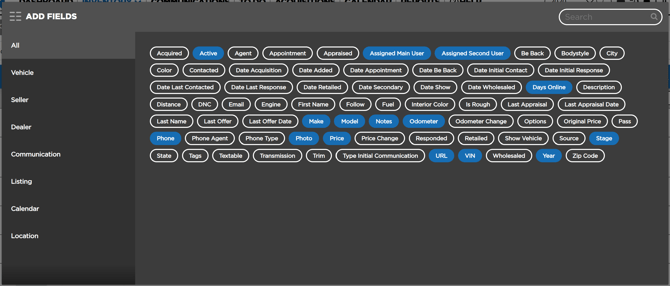
 The Fields button allows the user to select which fields will be shown in the active view of the module. In order to find the fields needed faster, they can be categorized as follows:
- All - Shows all fields that are available
- Vehicle - It has everything pertaining to the vehicle
- Seller - Everything regarding the seller
- Dealer - It allows to see any dealer-related field, as well as any tags that attached to that deal
- Communication - All coommunications-related fields
- Listing - Shows fields directly related with the listings
- Calendar - All date-related fields
- Location - Vehicle information about its location.
A list of fields for each module of the platform can be found by following the links below:
Filters
The Filters button allows the users to show/hide all the filters in the view.

Underneath every field's name there is a filter button, and its behavior will be different depending on the type of field selected. This buttons allow to apply a filter criteria for that specific field to the entire view.
The types of filters can be:
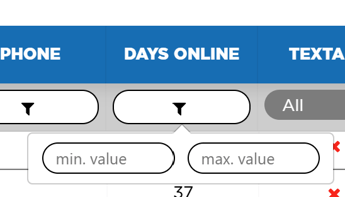
- By Range: Uses two values (Min. value - Max. value) in order to show all listings within that range.
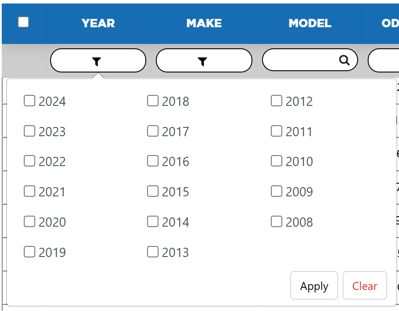
- Multiple Select: Clicking all the options that matches your criteria.
- By Searching: Typing keywords in order to find listings with that specific information.
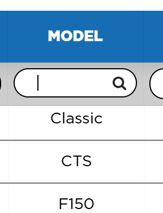
- Date Related:
- Selecting a range between two dates:
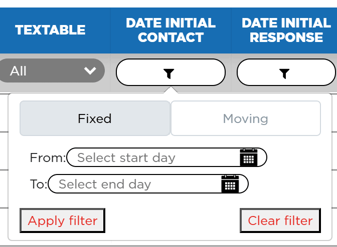
-
- Selecting a specific amount of time:
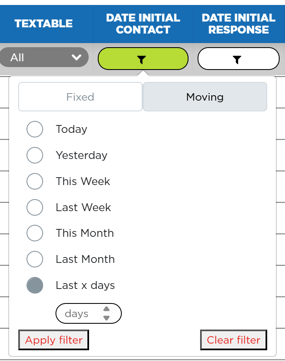
- Specific field Related:
- By searching using specific typed information:
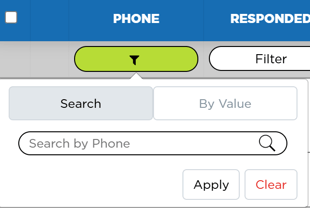
-
- By searching using specific field values: