![content.buywithvan.comhs-fshubfsvan-logo-white-1.png]](https://knowledge.buywithvan.com/hs-fs/hubfs/social-suggested-images/content.buywithvan.comhs-fshubfsvan-logo-white-1.png?width=120&height=48&name=content.buywithvan.comhs-fshubfsvan-logo-white-1.png)
Communication History is included in Professional and Accelerated tiers. Standard accounts do not have communication. Compare plans here
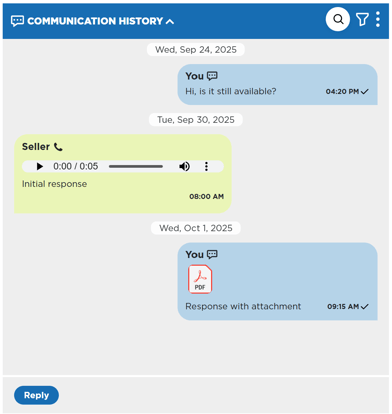
This section, located by default under the seller information in the VDP, shows most of the interaction between the system, the user and the seller.
All communication and interactions related to the current listing will be shown chronologically, grouped by date, and the user will be able to filter the information shown, search for specific messages, generate new replies, or even interact with those messages which allow interaction.
Section Tools
On the top-right corner of this section, you will find:
- The Search Tool - When clicked on it, the search bar will be displayed. The search we'll filter all messages, showing only the ones with the searched text typed inside them.
Pro Tip: You can open the search bar by using the shortcut Ctrl+/, or close it by pressing the Esc key.
- The Filter Button - Through this button, you will access to all the filter options available for the current listing. If you want to know more about the different filter options for the communication history, click here
- The ⋮ (3 Dots) Menu - Inside this menu, the user will find:
- Mark Conversation as Responded - This action, will mark all inbound messages for the current listing as responded
On the bottom-left corner of this section you will find the Reply button. Once this button is clicked, the Send Message modal window will opens with the communication channel preselected according to the following priority order:
- Type of last non-external message in the communication history
- If there's none non-external message, the first communication channel available (Priority order: Text/Form/Email)
- If none, the Send Button will be disabled due to there's no communication channel available
If you want to know more about how to send messages, click here.
Messages Structure
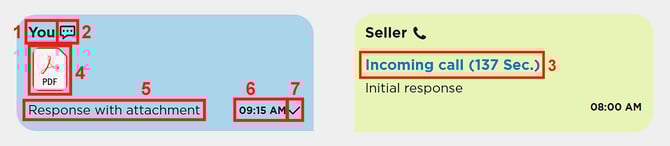
All messages shared a similar structured:
- Message's Sender - According to the direction of the message, the information shown will be:
-
Inbound Message
-
If the seller's name is known, it will be shown here
-
If the seller's name is unknown, the word Seller will be displayed instead
-
-
Outbound message
- If it is a message automatically generated by the system, the word System will be shown
-
If it is a communication generated by a user:
- If you are not that user, their name will be shown
- If you are that user, the word You will be shown
-
-
Communication channel used - The icon that represents the channel used to send the message will be shown here. The available channels are:
- Text
- Call
- Facebook (If set up)
-
Kijiji (If set up - Feature only available for canadian users)
-
Call Information (Only for Call messages) - In here, it will be shown the direction and duration of the call in seconds. This information only appears when there's no audio attached to the message
-
Attachment - It will show the attached file to this message (if any). To know more about attachments, click here
-
Message Content / Call Description - According to the message channel:
- Call - In case of calls added to the listing as an external communications, users will be able to add a description for that call here. If you want to know more about external communications, click here
-
Other communication types - The content of the message is shown
-
Communication Time - The time when the communication took place
- Communication Status - It will show an icon referencing the current status of the message. The explanation of each different status can be seen when hover the cursor over the icon
Message Quick actions and Menu
Each message, depending on its type, has a group of actions that appear when you hover over it. This options are:
- Edit Message (When available) - This option (represented by a pencil icon) allows the user to edit any external communication or scheduled message (unless it is already sent), in any other type of messages, this option will not be available. If you are interested in these kinds of messages, you can check the <External Communications> and the Schedule Messages articles.
- Delete Message (When available) - This option (represented by a Bin icon) allows the user to edit any external communication or scheduled message (unless it is already sent), in any other type of messages, this option will not be available.
When a message is deleted, it will not disappear from the communication history. Instead, it will be strikethroughed and it won't be editable anymore.
- The ⋮ (3 Dots) Menu - This menu shows information about the specific message such as:
- Provider - The provider who transmitted the message
- Channel - The channel used for this message
- Source - Displays the source from which the communication occurred at the time of receiving or sending this particular message. This information is particularly useful in cases when the listing was merged. If you want to learn more about merge listings, click here
- External Communication - here it is indicated if the message was originally an external communication. If it wasn't, this option will not be visible.
- Mark as Responded - This action mark this specific message as responded. If the message was already marked, this action will become unclickable, and its caption will change to Responded ✅
If the seller send any email or message with attached images, those images will be automatically added to the VDP images carousel.