![content.buywithvan.comhs-fshubfsvan-logo-white-1.png]](https://knowledge.buywithvan.com/hs-fs/hubfs/social-suggested-images/content.buywithvan.comhs-fshubfsvan-logo-white-1.png?width=120&height=48&name=content.buywithvan.comhs-fshubfsvan-logo-white-1.png)
This button/menu is located on the top-right corner of the Inventory, Communications, To Do and Notifications modules.
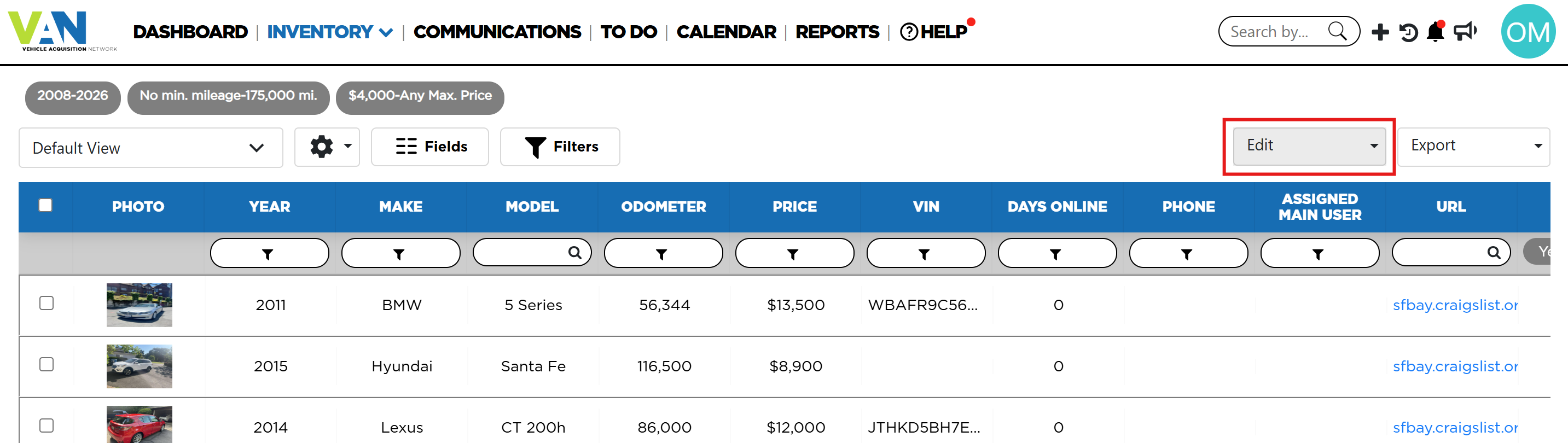
It allows to perform specific actions on any amount of listing selected on the active view at the same time.
By default it is grayed, and in order for the button to be enabled, at least one listing must be checked (by using the checkbox on the far left of each listing).
Actions
The actions that can be performing in batch are:
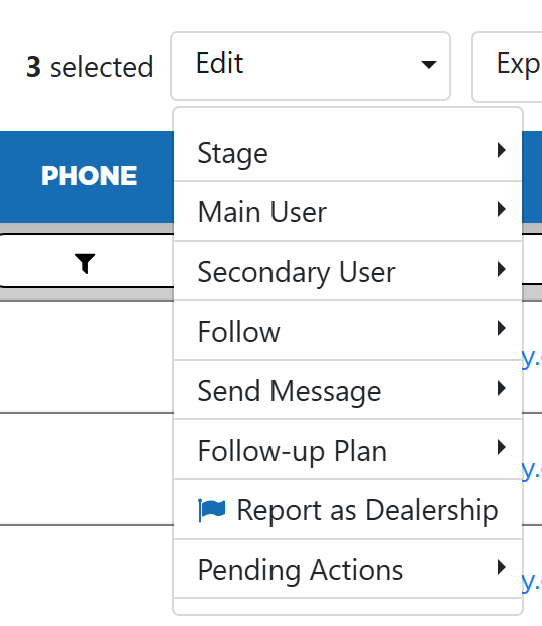
-
- Contacted
- Pass
- DNC (Do Not Contact)
Listings in the following stages will not be downgraded to a previous stage, therefore, will be ignored when including in this type of batch action:
- Appraised
- Acquired
- Retailed
- Wholesaled
- Main or Secondary User - Allows to select a Main or Secondary User for the listings related with the selected records. If you want to learn more about users assignations and how they work, click here
- Follow - Allows to follow/unfollow the listings related with the selected records. To know more about the follow option, click here
- Send Message - Allows to send instant or scheduled messages to the listings related with the selected records. To know more about messaging, click here
- Follow-Up Plan - Allows to set a Follow-Up plan for the listings related with the selected records. To know more about follow-up plans, click here
- Report as Dealership - Applies the Report as Dealership process on the listings related with the selected records. If you want to know more about this process works, click here
- Pending Actions - This actions work on all pending actions and notes located at the VDP of the listings related with the selected records. Our options here are:
- Complete All - Completes all pending actions and notes for the listings related with the selected records
- Delete All - Deletes all pending actions and notes for the listings related with the selected records
- If you want to know more on how pending actions work, click here