![content.buywithvan.comhs-fshubfsvan-logo-white-1.png]](https://knowledge.buywithvan.com/hs-fs/hubfs/social-suggested-images/content.buywithvan.comhs-fshubfsvan-logo-white-1.png?width=120&height=48&name=content.buywithvan.comhs-fshubfsvan-logo-white-1.png)
By default, the system organize the sections using the left column for vehicle-related section, the center column for seller-related sections, and the right column for dealer-related sections.
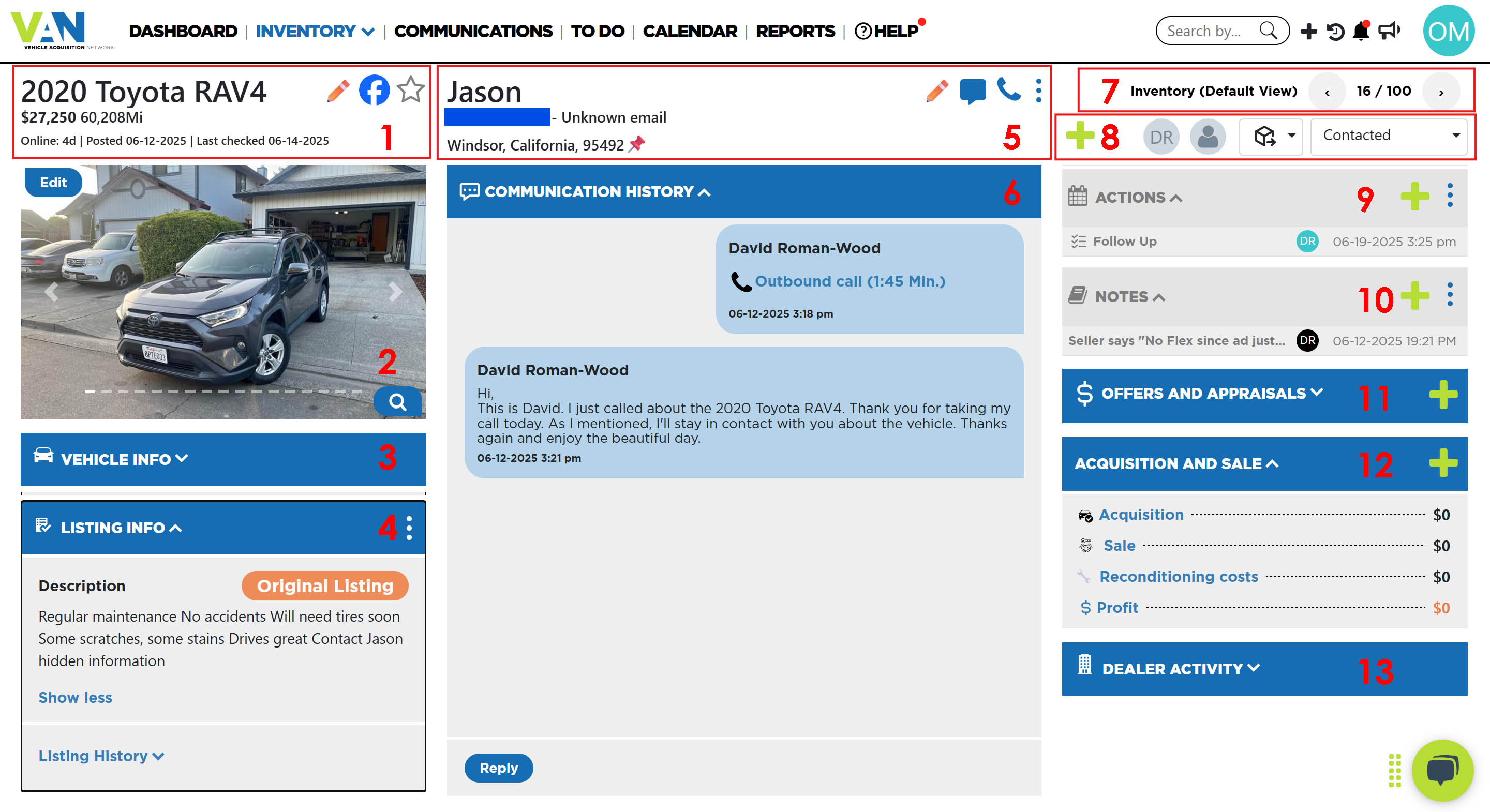
Inside the VDP, you will find:
- Vehicle Header - This section shows the most relevant vehicle (Year, make, model, odometer) and listing information (date the listing was posted, how many days online, current price and and indicator if it change respect of its previous price, if any), as well as the capacity to edit the vehicle information and have access to the original listing. From this section you can also perform the Follow action, which indicates you are interested on the listing
- Pictures provided with the original listing are displayed with the ability to rotate through the pictures and enlarge for better visibility. More pictures can be added manually if required
- Vehicle Info - This section shows some additional vehicle information (besides the info included in the vehicle header from point 1) VIN, transmission, color, Drivetrain, Engine, Fuel, and Body style will be displayed if provided by the seller. From this section, the user can also edit all vehicle-related information
- Listing Info - Listing information includes a description if provided by seller, link to Original Listing and the listing price history
- Seller Info - The seller information includes city, state/province, zip code/postal code. Additional information that is not required by the listing source like name, address, phone and email will be displayed if provided by the seller. From this section, if you have the seller contact information, you can perform the following actions:
- Send Messages - Send text messages or E-Mails to the Seller
- Call - Contact the Seller through a phone call
- <Communication History> - Communication history will display in chronological order with time/date stamps all inbound and outbound communications done through the platform between the system, the user and the seller including texts, calls and emails
- VDP Tabbed Navigation - It is located on the top-right corner of the screen, it allows the user to navigate through the listings of the current page of view from where the current VDP was opened (the name of the view is indicated on the left of the navigation arrows)
- Quick Actions - Located right below the VDP Tabbed Navigation, it is made by a group of different tools:
- Add - By clicking in the ➕ icon, you can create items related to any section of the VDP:
- Tasks:
- To Do
- Text Message
- Call
- Appointments
- Notes
- Offers and Appraisals
- Follow Up Plans
- Tasks:
- Main User - Shows the main user assigned to this listing or allows to assign one
- Secondary User - Shows the secondary user (if any) assigned to this listing or allows to assign one
- Integrations Menu - Allow users to push the listing to vAuto - Appraisals or a connected CRM.
- Stage Menu - This menu is used to indicate and update the listing stage
- Add - By clicking in the ➕ icon, you can create items related to any section of the VDP:
- Actions - Actions section allows users to schedule tasks and appointments and will display those scheduled actions in chronological order including their current status
- Notes - Notes section includes any information considered relevant by the user. It is also shown in chronological order and may have attachments
- Dealer Activity - This section includes the ability to view a log of activities for the specific vehicle
- Offers and Appraisals - In this section users can enter offers and appraisals for the listing
- <Acquisition and Sale> - In this section you enter the acquisition price of the vehicle and its subsequent sale price, whether to a private buyer or a wholesaler
- Tags - This section gives the users ability to create, manage, dete and assign tags to the listing
Drag and Drop Sections
As you can see below, all VDP sections can be reorganized and collapsed for your convenience.